ArcGIS Velocity requires access to ArcGIS Online to create items (such as feeds and analytics), to run items (such as a feed from a feature layer), and to write features to output feature layers. Rather than storing a username and password, Velocity uses a refresh token or ArcGIS API key to authenticate and connect to ArcGIS Online.
You can have both an ArcGIS API key and a refresh token registered with Velocity. In those situations, Velocity uses the ArcGIS API key instead of the refresh token. If an ArcGIS API key expires or becomes invalidated, Velocity attempts to switch to the refresh token to create and run items.
Authentication mechanisms
The sections below explain how both authentication methods work and how Velocity uses them.
Refresh token
Refresh tokens are short-lived access tokens with a default lifespan of two weeks. To ensure that feeds and analytics can run for longer periods of time, Velocity has mechanisms to identify when refresh tokens are nearing expiration. Velocity automatically requests and updates these tokens.
ArcGIS API key
ArcGIS API keys are longer-lived access tokens with an expiration of one day to one year. You define the expiration value of the ArcGIS API key when it is created. It is recommended that you use an expiration value of one year. Your ArcGIS Online user account must have the privileges required to create an ArcGIS API key.
Learn more about considerations and limitations of using an ArcGIS API key
Create an API key in ArcGIS Online
Note:
You must first create an API key in ArcGIS Online; then register the ArcGIS API key with Velocity.
To create an API key, complete the following steps:
- Open ArcGIS Online in the browser, and sign in using your ArcGIS organization's credentials.
- In your portal, click Content > My Content > New item.

- Click Developer credentials.

- Click API key credentials, and click Next.

- Choose the Private application with all owner privileges option, and click Next.
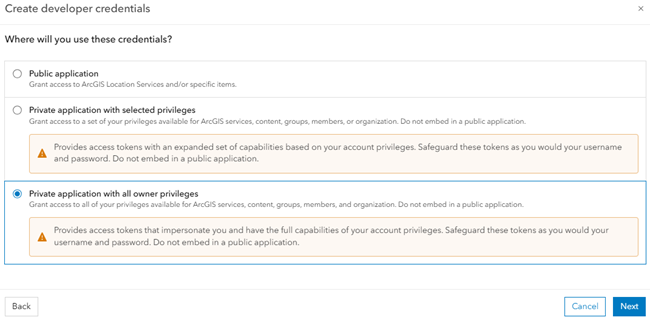
- In the Create developer credentials window, do the following:
- Click the Expiration date (required) parameter, and set the expiration date for the API key.
Note:
The minimum expiration date is one day, and the maximum is one year. It is recommended that you set the expiration date to one year.
- Provide the Referrers URLs parameter values, and click Next.
Type the referrers URLs value as: https://*.arcgis.com.

- In the Item details section, provide values for the Title, Tags, and Summary parameters, and click Next.

- Check the I acknowledge and accept the security requirements associated with the selected privileges check box, and click Next.

- Choose an option for when you want to generate an API key, and click Next.
The following options are available:
- Generate the API key now. I am ready to copy and save the key.
- Go to item details page. I'll generate the API key later.

- Click the Expiration date (required) parameter, and set the expiration date for the API key.
- On the item details page, browse to the Credentials section, and click Generate API key.

- On the Generate API key dialog box, copy the generated API key, and click Close.

- On the item details page, go to Settings > General to open the General page.
It is recommended that you turn on the Deletion management toggle button to prevent this item from being accidentally deleted.

- On the General page, hover over the Expiration text to view the full API key expiration date.
The returned value is in your local time zone.

After completing the steps above, you have created an API key in ArcGIS Online that you can register with Velocity.
Learn more about creating an API key credential in ArcGIS Online
Manage API keys in ArcGIS Online
Once an API key is created, you can manage it from the Credentials section on the item details page.
Generate a secondary API key
To generate a secondary API key, complete the following steps:
- On the item details page, in the Credentials section, click Generate a secondary API key.

- On the Generate API key dialog box, set the expiration date to the same day that you selected in the previous section, and click Generate API key.

A secondary API key is created and listed alongside the existing API key, each with its own expiration date.
Regenerate an API key
To regenerate an API key, complete the following steps:
- Click Regenerate API key next to an existing key.

The Regenerate API key dialog box appears.
- Click Confirm expiration date.

- Review and set the current expiration date.
Update the expiration date to a later date or confirm the current settings.
- Click Yes, regenerate API key.

- Copy the generated API key, and click Close.

A new API key is generated to replace the previous one.
Invalidate an API key
To invalidate an API key, complete the following steps:
- Click Invalidate API key next to the API key you want to remove.

- On the Invalidate API key dialog box, click Yes, invalidate API key.

The invalidated API key is removed from the Credentials section.
Register an ArcGIS API key in Velocity
After generating the API key in ArcGIS Online, you can register it with Velocity.
To register the ArcGIS API key in Velocity, complete the following steps:
- Open the Velocity app in the browser, and sign in using your ArcGIS organization credentials.
- Click the View authentication mechanism button
 to expand the Authentication Mechanism drop-down menu.
- Click Update Authentication Mechanism to open the Configure Authentication Mechanism dialog box.
- Choose the ArcGIS API Key option, and click Next.

- Paste the API key that you created in the previous section in the ArcGIS API Key text box.
- Set the Expiration Date option to the same day that you selected in the previous section.
- Click Confirm.

After completing the steps above, you will receive a success message. Notice that the ArcGIS API Key registered toggle button is turned on in the Authentication Mechanism drop-down menu, which indicates that you have an ArcGIS API key registered.

Considerations and limitations
Consider the following when using ArcGIS API keys in Velocity:
- At this time, Velocity does not send email notifications when a registered ArcGIS API key is nearing its expiration.
In an ArcGIS Online account, if you do not have the API key credentials option in the Create developer credentials menu, your account may not have the correct privileges. Your account needs to have privileges to create and assign authorization to API key credentials.
You can edit the general privileges on the Member roles page. To open the Member roles page, go to Organization > Settings > Member roles.
In the Manage roles section, under Member roles, you can view all existing roles in ArcGIS Online. Click the more options button next to the role, and choose the Edit option to open the Edit role window.

In the Edit role window, expand General privileges > Content, and turn on the Generate API keys and Assign privileges to OAuth 2.0 applications toggle buttons to create and assign authorization to an API key credential.

Note:
If these privileges are missing, contact your organization’s administrator to update your role with the necessary permissions.
- The user account must have access to Velocity items to use an API key created by that user in Velocity.