Webhooks allow multiple applications to interact with each other, using HTTP POST requests to pass call backs between them. For more information, see Wikipedia's page on webhooks. Common uses for webhooks include sending notifications by email or SMS, posting messages to social media, automatically writing records to a spreadsheet, and updating enterprise databases.
In Survey123, webhooks can be set up and activated when a record is created in or deleted from a feature layer or when a survey response is submitted. For example, after a successful submission of information to the feature layer, the webhook can be called and trigger another action, such as sending a notification email, appending the survey content to a spreadsheet, and sending an alert.
Caution:
When you create or modify a webhook for a survey, the survey must be updated in Survey123 Mobile or the Survey123 field app for the changes to take effect.
Your workplace may have its own webhook provider, but a variety of third-party workflow services are available, such as Microsoft Power Automate, Make, Zapier, and tray.io. All of these can be used to incorporate Survey123 as a trigger for an automated process.
Microsoft Power Automate and Make also include workflow components to assist the creation of webhooks for use with Survey123.
Types of webhooks supported by Survey123
Survey123 supports two types of webhooks:
- Feature layer webhooks—These are stored in and triggered by the survey's feature layer or feature layer view.
- Survey123 webhooks—These are stored in the survey's form item and are triggered by the field app or web app.
Microsoft Power Automate includes an ArcGIS connector that helps set up feature layer webhooks or Survey123 webhooks. To learn more, see ArcGIS Connectors. The following workflow components that help set up a Survey123 webhook continue to be available but will no longer be updated:
- Microsoft Power Automate—Survey123 connector
- Make—Survey123 module
Examples of how to set up a webhook
There are numerous ways you can use Survey123 as a trigger in your workflows. The first three examples in this section use the same scenario—send a notification email when a response has been sent that contains a question answered with a certain value—but each with a different third-party workflow component or type of webhook. The last example assumes that you have created a custom webhook (not using a Microsoft Power Automate connector or Make module), and it describes how to add the webhook to Survey123.
See the following examples:
- Set up a feature layer webhook in Microsoft Power Automate
- Set up a Survey123 webhook in Microsoft Power Automate
- Set up a Survey123 webhook in Make
- Add a webhook in the Survey123 website
Set up a feature layer webhook in Microsoft Power Automate
Complete the following steps to set up a feature layer webhook in Microsoft Power Automate:
Note:
ArcGIS Online credentials used to create flows in Power Automate automatically sign out after two weeks. If you cannot browse expected surveys in Power Automate, confirm that your Survey123 data connection is active. For more information, see the Quick Tip: Keeping the ArcGIS Connectors for Power Automate Refresh Token Valid blog article.
To set up a flow in Microsoft Power Automate using the ArcGIS or ArcGIS Enterprise connectors, complete the steps below. If you previously created flows with the Survey123 connector, they will still work, but new functionality will only be added to the ArcGIS and ArcGIS Enterprise connectors. For more information, see the Survey123 triggers and actions in the ArcGIS connectors for Power Automate blog article.
- Open Microsoft Power Automate.
- Select Create from the page side menu.
- Select Automated cloud flow from the Start from blank options.
The Build an automated cloud flow dialog box appears.
- Name the flow.
Next, you'll select a trigger.
- Type ArcGIS in the search bar, and select When a record is created in a feature layer as trigger in this workflow.
- Click Create.
- Sign in with your ArcGIS organization credentials and choose the feature layer you want to monitor.
You must select the feature layer or feature layer view to which the submissions are made.
- Add the Fetch updates, changes, or deletions from feature layer action in this workflow.
- Set Change URL as input of Get changes from.
- Set layerId as the input of feature layer ID.
- Select Office 365 Outlook - Send an email (V2).
- Sign in to the mail service with your credentials, if your credentials are not already saved.
- Fill in the To, Subject, and Body fields of your email.
The Dynamic content dialog box that appears when you select a text box allows you to insert content from the survey response as necessary.
- When your email is complete, click Save.
The webhook is complete and is active by default. The webhook will now run every 30 seconds.
Set up a Survey123 webhook in Microsoft Power Automate
Complete the following steps to set up a Survey123 webhook in Microsoft Power Automate:
Note:
ArcGIS Online credentials used to create flows in Power Automate automatically sign out after two weeks. If you cannot browse expected surveys in Power Automate, confirm that your Survey123 data connection is active. For more information, see the Quick Tip: Keeping the ArcGIS Connectors for Power Automate Refresh Token Valid blog article.
To set up a flow in Microsoft Power Automate using the ArcGIS or ArcGIS Enterprise connectors, complete the steps below. If you previously created flows with the Survey123 connector, they will still work, but new functionality will only be added to the ArcGIS and ArcGIS Enterprise connectors. For more information, see the Survey123 triggers and actions in the ArcGIS connectors for Power Automate blog article.
- Open Microsoft Power Automate.
- Select Create from the page side menu.
- Select Automated cloud flow from the Start from blank options.
The Build an automated cloud flow dialog box appears.
- Name the flow.
Next, you'll select a trigger.
- Type ArcGIS in the search bar, and select When a survey response is submitted.
- Click Create.
- Sign in with your ArcGIS organization credentials.
- Select the survey you want to use for the webhook from the drop-down list of surveys.
You have now set up the trigger for the webhook; however, for the webhook to perform actions with this trigger, there are additional steps.
The flow must send an email when a question has been answered a certain way, so you'll provide a condition.
- Click the New step button, and choose Condition at the top of the Actions section.
- Click the leftmost text box to open a dialog box to select a question or property from the survey, and select the survey question you want to use to qualify the survey.
- In the middle text box, from the drop-down menu, select the is equal to condition as the trigger, since you're looking for an exact response.
- In the rightmost text box, type the value for the question for which you want to send a notification.
You want this email sent only if the condition is fulfilled.
- Click Add an action in the If yes box.
The If no box remains blank.
Many mail services have connectors that can be used in this flow.
- Select Office 365 Outlook - Send an email (V2).
- Sign in to the mail service with your credentials, if your credentials are not already saved.
- Fill in the To, Subject, and Body fields of your email.
The Dynamic content dialog box that appears when you select a text box allows you to insert content from the survey response as necessary.
- When your email is complete, click Save.
The webhook is complete and is active by default. The webhook will now run every time a survey response is submitted with the given conditions.
Tip:
You can use the Create report action to generate a report for a survey response.
Set up a Survey123 webhook in Make
Complete the following steps to set up a Survey123 webhook in Make:
- Go to https://www.make.com/ and sign in.
- On the Scenarios page, click the Create a new scenario button.
- Click the module icon in the middle of the screen. Search for Survey123 and select it.
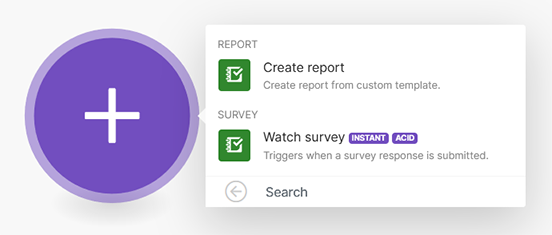
- Choose the Watch survey trigger module.
This module is designed to run the scenario each time a survey response is submitted.
A pop-up appears to help you configure the Watch survey module.
Tip:
The Create report module can be used to generate a report for a survey response.
- Click Add and provide a name for your webhook.
This name should be unique to the survey for which you are configuring the webhook.
- If this is your first time using the Survey123 module in Make, set up a connection to your ArcGIS organization. Under Connection, click Add and name the connection to ArcGIS.
You only need to do this once, as Make saves your information for future use.
- To connect to ArcGIS Online, click Save to sign in to your ArcGIS organization.
- To connect to ArcGIS Enterprise, register Make with your portal. For more information, see the Survey123 Tricks of the Trade: Make blog article.
- Choose a survey from your ArcGIS organization to connect to.
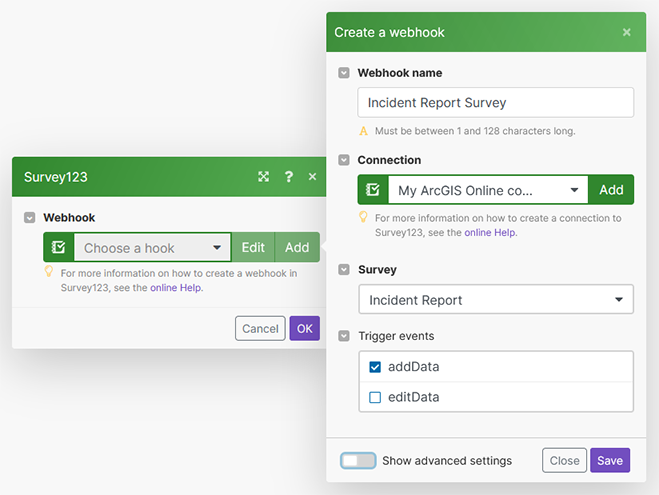
- Consider the options to include in your webhook, and click Save.
Keeping the default value of Yes is recommended for all advanced settings, giving you the most flexibility when customizing your webhook.
- Click OK.
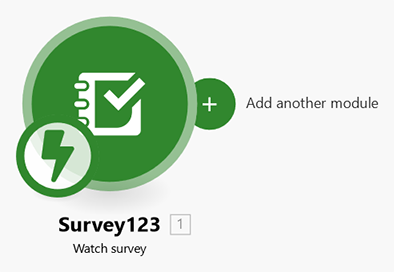
Your webhook is created and the Watch survey module is configured.
- Click the Add another module button on the right side of the Watch survey module to connect another module to it.
- Search for Email and select the Email module.
- Select the Send an Email action.
- If this is your first time using this module in Make, click Add to set up a connection to your email account. Select a connection type and sign in to your account.
You only need to do this once, as Make saves your connection for future use.
- Add a recipient email address.
This is the email address where the triggered email will be sent.
- Click in the subject text box. Choose fields from your survey to construct your email subject using the module settings panel that appears.
- Click in the content text box. Choose fields from your survey to construct the content for your email using the module setting panel that appears.
You can format the content using HTML.
- Click OK.
This scenario must send the email when a question has been answered a certain way, so you will provide a filter.
- Click the tools button between the two modules, and select Set up a filter.
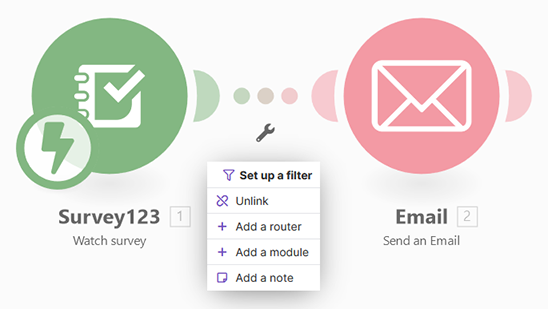
- Click in the Condition text box and choose the field from your survey that you want to use in the filter.
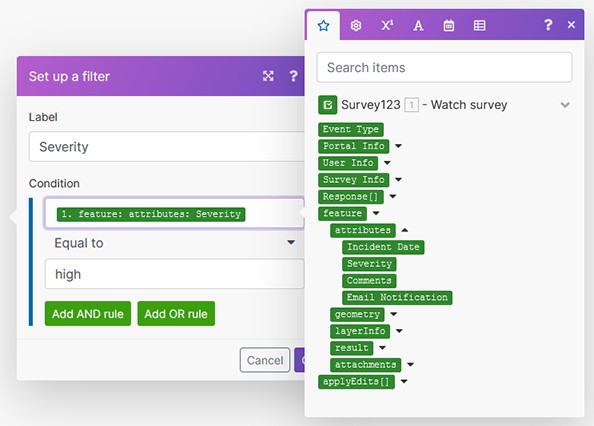
- Choose the operator for the condition. In this case, choose the default, Equal to.
- Enter a value for the condition and click OK.
- Click Save to save your scenario.
Optionally, you can click Run once to test your webhook. After clicking Run once, open Survey123 and submit a survey, ensuring that the survey response satisfies the filter condition. Confirm that the recipient receives the email.
- Use the toggle button at the lower left of the page to activate your scenario. Set the schedule to Immediately to ensure that the scenario runs each time a survey response is submitted.
To learn additional ways to use Survey123 as a trigger in your Make scenarios, see Survey123 integrations.
Add a webhook in the Survey123 website
Either a Survey123 webhook or a feature layer webhook can be added in the website. The following steps show how to set up a feature layer webhook. A Survey123 webhook is the same but with additional Event data options that are listed in Event payload properties.
- On your My Surveys page, select the Settings tab from the menu at the lower right of the survey's panel.
- Select the Webhooks section from the menu on the left.
This page allows you to set and access all webhooks you've set up. If you haven't set up any webhooks in Survey123, the page is empty.
- Click Add webhook, and select Add feature layer webhook.
A new panel appears where you can set up how the webhook will interact with your survey.
- Provide a name for your webhook, which will be used to identify it in the future.
- Select New record submitted.
- Leave it set to On (the default).
- Click Save.
The payload URL is where the survey information will be sent. This must be provided by an external webhook service. When you create a webhook using a service such as Microsoft Power Automate or Make, the payload URL is automatically populated on this page. Other services such as Zapier or FME Server provide the payload URL for you to copy to this page. Other apps may require you to create a dedicated service to listen for the webhook.
The trigger events describe the specific actions that will call the webhook.
The webhook is ready to use and will run every time a survey response is submitted. Rules set in the webhook provider can ensure that an email is sent only if certain criteria are met.
Event payload properties
A webhook event sends a payload of properties as a JSON object. The contents of the payload will differ based on the type of webhook used and the survey.
Feature layer webhooks contain only addData or editData events. For more information, see Feature layer webhook payloads.
Survey123 webhooks contain the type of event and additional properties . The following table lists the common properties contained in the JSON object of a Survey123 webhook:
| Property | Description |
|---|---|
| eventType | The type of event. Values can be addData or editData. |
| portalInfo | Information about the ArcGIS organization where the survey is hosted. It contains the following properties:
|
| surveyInfo | Information about the survey that generated the webhook. It contains the following properties:
|
| userInfo | Information about the ArcGIS organizational account for the user who submitted the survey. It contains the following properties:
|
The following properties of Survey123 webhooks will vary depending on the survey and event type:
| Property | Description |
|---|---|
| applyEdits | The Apply Edits payload submitted by the survey. If eventType is addData, it will contain adds. If eventType is editData, it will contain updates. When adding a new repeat record, it will also contain adds. |
| response | The response from the applyEdits operation. It includes the global IDs for the features created by the operation and whether the operation was successful. |
| feature | The survey record that was submitted. It contains the following properties:
|