Follow the workflows below to update Esri Vector Basemaps World Edition WMA or GCS for ArcGIS Data Appliance 2026.
Note:
To use Esri Vector Basemaps in the GCS format, complete the steps using the information for GCS.
For information about what's included with Esri Vector Basemaps, see Esri Vector Basemaps content and What's new.
Note:
Before you proceed, review the system requirements to confirm that you can deploy the Esri Vector Basemaps update.
You'll use the following workflow to update Esri Vector Basemaps World Edition WMA or GCS:
- Upload the package to your ArcGIS Enterprise portal.
- Publish
the new hosted tile layer (service).
Note:
The title of the new hosted tile layer must be different than the title of the existing hosted tile layer (for example, the name of the new WMA layer is Esri_Vector_Basemap_DA2026_v2).
- Replace the existing hosted tile layer (service) with the new hosted tile layer.
- Update existing World Edition tile layers (map styles).
- Share tile layers (map styles).
Upload the package to your ArcGIS Enterprise portal
Esri Vector Basemaps includes two vector tile packages (.vtpk). The Esri_Vector_Basemap_DA2026_Install.vtpk file is in the Web Mercator Auxiliary Sphere (WMA) projection. The Esri_Vector_Basemap_GCS_DA2026_Install.vtpk file is in the WGS84/GCS (GCS) tiling scheme. The following steps reflect the sharing process of the WMA vector tile package.
Note:
To share the GCS package, you must provide the correct .vtpk file name for the input package as well as take the GCS naming into consideration when publishing the hosted tile layer. The Esri Vector Basemaps styles in the GCS directory already take the GCS naming into account in the metadata files.
Complete the following steps for the package:
- Download all the Esri Vector Basemaps files from My Esri or copy the entire USB flash drive contents to your local computer if you have not already done so. Note that all files must be downloaded from My Esri before unzipping.
- Unzip the first file with 7-Zip software (free from www.7-Zip.org), and the rest will automatically unzip with it.
- Start ArcGIS Pro, sign in to your
ArcGIS Enterprise portal, click the Options button
 , and click Set As Active Portal.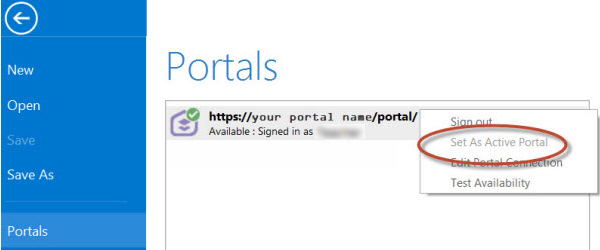
Note:
You must sign in and connect to your portal before you proceed. You cannot provide your portal username and password when using the Share Package tool later in these instructions. The tool obtains your credentials from ArcGIS Pro.
- Create a project.
- Click the Analysis tab, and click Tools in the Geoprocessing group.

The Geoprocessing pane appears.
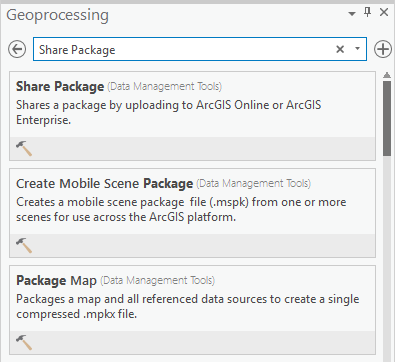
- In the Geoprocessing pane, search for Share Package, and select the Share Package (Data Management Tools) tool from the search results.
- On the Share Package dialog box,
do the following:
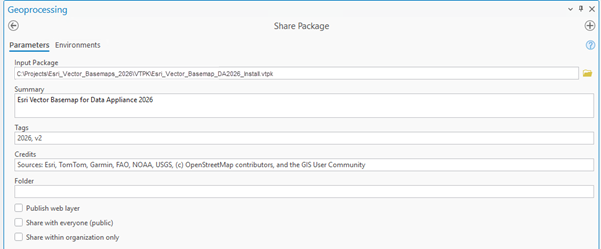
- For Input Package, provide the path to the vector tile package, for example, C:\Projects\Esri_Vector_Basemaps_2026\VTPK\Esri_Vector_Basemap_DA2026_Install.vtpk.
- For Summary, type Esri Vector Basemap for Data Appliance 2026.
- For Tags, type 2026, v2.
Caution:
Do not change the Credits parameter value and do not check the Publish web layer, Share with everyone, or Share within organization only check boxes.
- Click Run.
It will take approximately 30 to 120 minutes to upload the package to your portal. A Share Package Uploaded Successfully message appears in the Share Package window once the upload is complete.
- Through your portal, confirm that the .vtpk file uploaded successfully.
- Open a web browser and sign in to your portal.
The Esri_Vector_Basemap_DA2026_Install tile package is located in the root folder.
- Under Details, confirm that the Size value of the tile package matches the size for your vector tile package and Enterprise version in the following table and Shared with indicates that the item is not shared.
Vector tile package .vtpk file Enterprise version Size Esri_Vector_Basemap_DA2026_Install.vtpk (WMA)
11.1, 11.3, and 11.5
50,503.922 MB
Esri_Vector_Basemap_GCS_DA2026_Install.vtpk (WGS84)
11.1, 11.3, and 11.5
50,110.554 MB
Your item should look similar to the following when uploading Esri_Vector_Basemap_DA2026_Install.vtpk (WMA) in Enterprise. The size in the item Details section should match the size in the chart above:

- Open a web browser and sign in to your portal.
Note:
If the size is not correct, delete the item and upload the tile package again. You may want to discuss the problem with your portal administrator.
See the Troubleshoot Esri Vector Basemaps topic for more information.
Publish the new hosted tile layer (service)
Now you'll publish the Esri Vector Basemap hosted tile layer service from your portal.
- Sign in to your
ArcGIS Enterprise portal.
Note:
Your account must have publishing credentials. - In My Content, go to the item page for the vector tile package (Esri_Vector_Basemap_DA2026_Install.vtpk) you uploaded to your portal.
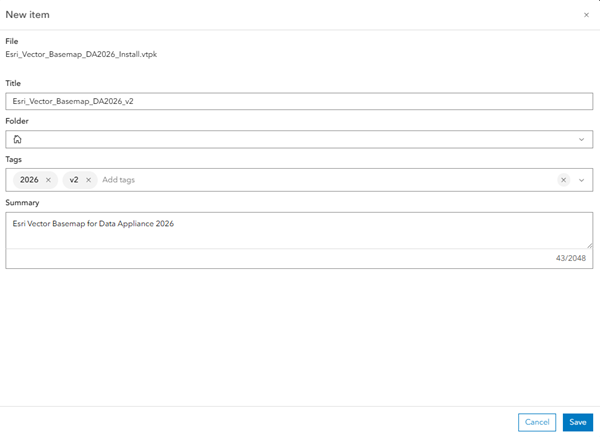
- Click Publish, change the title to Esri_Vector_Basemap_DA2026_v2, and click Save (if you are using 11.1, click Next) to publish the service.
Note:
For the GCS tile package, use the Esri_Vector_Basemap_GCS_DA2026_Install.vtpk file. Change the title to Esri_Vector_Basemap_GCS_DA2026_v2 for the hosted tile layer that is published.
Note:
It will take 30 to 120 minutes to create the hosted layer, depending on your system configuration.
The Esri_Vector_Basemap_DA2026_v2 hosted tile layer is created. After publishing in 11.1, 11.3, or 11.5, the Vector Tile Service URL includes Esri_Vector_Basemap_v2, but the item is named Esri_Vector_Basemap_DA2026_Install. You must change the hosted tile layer's title.

- In 11.1, 11.3, or 11.5, go to the item page for the hosted tile layer (Esri_Vector_Basemap_DA2026_Install), click the Edit button
 next to the current item title on
the Overview tab of the item page, change the title to Esri_Vector_Basemap_DA2026_v2, and click Save.
next to the current item title on
the Overview tab of the item page, change the title to Esri_Vector_Basemap_DA2026_v2, and click Save.Note:
For the GCS tile hosted tile layer (Esri_Vector_Basemap_GCS_DA2026_Install), change the title to Esri_Vector_Basemap_GCS_DA2026_v2.


Replace the existing hosted tile layer (service) with the new hosted tile layer (service)
Next, you'll replace the 2025 basemap hosted tile layer (service) with the 2026 hosted tile layer (service).
- Sign in to your
ArcGIS Enterprise portal.
Note:
Your account must have publishing credentials. - In My Content, go to the item page for the Esri_Vector_Basemap_v2 vector tile service.
Usually, the item page title matches Esri_Vector_Basemap_v2, but in some cases, it may not. It is important to verify the correct vector tile service URL before proceeding with the replacement.
- Click Replace Layer.
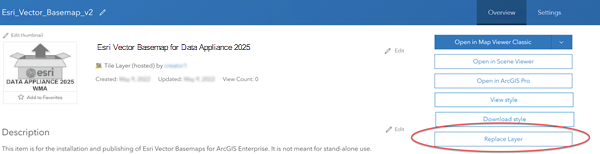
- Click Select Layer, and select the new hosted tile layer that you just published, for example, Esri_Vector_Basemap_DA2026_v2. Click Select.
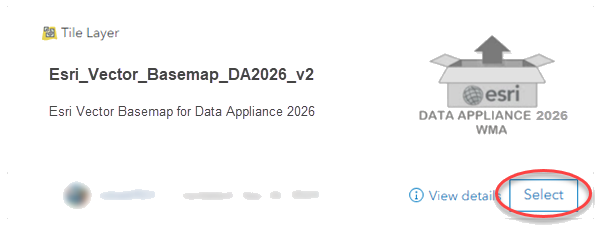
- Click Next.
- For Archive the current layer as, click the Edit button , change the value to Esri_Vector_Basemap_DA2025_v2, and click Save. Scroll to Replace item information and click the toggle button.
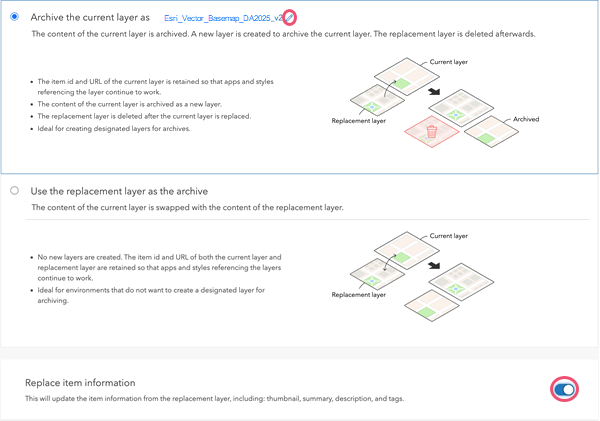
- Click Next.
- On the Replace Layer summary, click Replace.

Note:
The current layer starts as DA2025. The replacement layer is DA2026. You are archiving the DA2025 hosted tile layer, and the current layer (Esri_Vector_Basemap_v2) now displays the DA2026 hosted tile layer. Replacing the tile set allows the item ID and URL paths to remain intact, so maps and apps continue to work with the current layer and display the new DA2026 basemap content.
The Success message flashes briefly on the screen.
- To verify a successful replacement, in My Content, go to the item page for the Esri_Vector_Basemap_v2 vector tile service.
Your item should look like the following in 11.1 or 11.3:
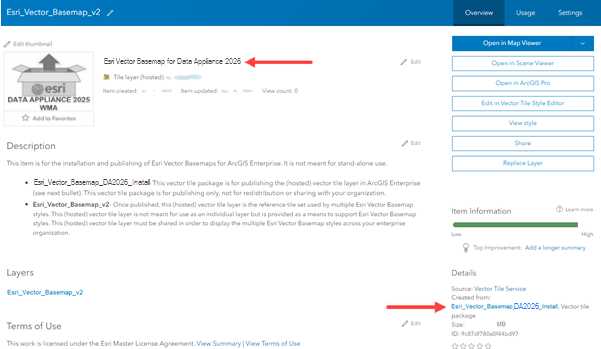
Note:
In 11.1 and 11.3, the thumbnail is not replaced, but the summary is Esri Vector Basemap for Data Appliance 2026 and the Details section indicates it was created from the Esri_Vector_Basemap_DA2026_Install Vector tile package.
Update existing World Edition tile layers (map styles)
Use the Vector Style Updater tool to update your existing WMA or GCS layers.
Note:
You must have a portal account assigned to the default publisher or administrator role, or your account must be assigned to a custom role that has privileges to create content and publish hosted tile layers.
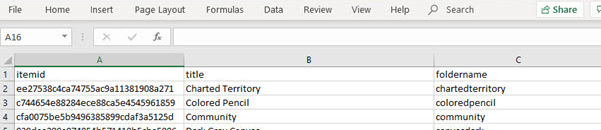
- Open the DA2026_WMA_StyleUpdater_template.csv file located in the C:\Projects\Esri_Vector_Basemaps_2026\Toolbox folder.
Note:
For GCS, open the DA2026_GCS_StyleUpdater_template.csv file located in the C:\Projects\Esri_Vector_Basemaps_2026\Toolbox folder.
- Include the item IDs of all your existing styles in the itemid column in this table. Obtain the item ID for each style from the portal URL for each style. Only copy and paste the series of letters and numbers after ...id=.

Note:
Ensure the titles in the template file match the titles of existing items in your portal.
- Once you fill in the itemid column, save the file and rename it DA2026_WMA_StyleUpdater.csv.
Note:
For GCS, rename it DA2026_GCS_StyleUpdater.csv.
Note:
These are example item IDs. Use the IDs that are unique to your items in your portal.
- Include the item IDs of all your existing styles in the itemid column in this table. Obtain the item ID for each style from the portal URL for each style. Only copy and paste the series of letters and numbers after ...id=.
- Run the Vector Style Updater tool.
- Start ArcGIS Pro, sign in to your
ArcGIS Enterprise portal, click the Options button , and click Set As Active Portal.
- Create a project.
- Click the View tab, click Catalog View in the Windows group, right-click Toolboxes, and click Add Toolbox.
- Browse to the location on your local computer where you downloaded the files or copied the contents of the USB flash drive, click VectorStyleUpdater.tbx, and click OK.
The VectorStyleUpdater toolbox is added to the project.
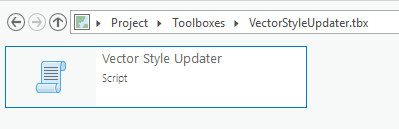
- Double-click Toolboxes, and double-click VectorStyleUpdater.tbx.
- Double-click the Vector Style Updater script.
- On the Vector Style Updater dialog box,
click the Parameters tab and do the following:
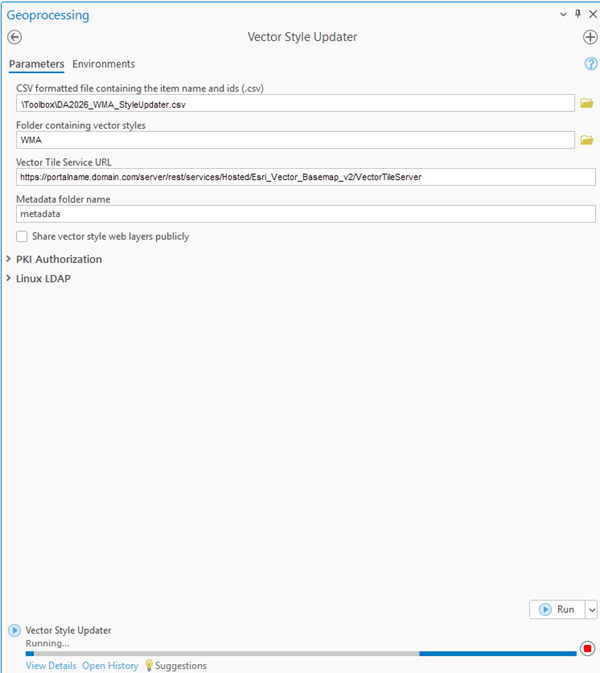
- For CSV formatted file containing the item name and ids (.csv), browse to the location of the DA2026_WMA_StyleUpdater.csv file on your local computer.
- For Folder containing vector styles, browse to the location of the WMA Updated Styles folder on your local computer, for example, C:\Projects\Esri_Vector_Basemaps_2026\VectorBasemapStyles\World_Edition\ExistingUser\WMA.
Note:
For the GCS tile package, browse to the location of the VectorBasemapStyles folder on your local computer, for example, C:\Projects\Esri_Vector_Basemaps_2026\VectorBasemapStyles\World_Edition\ExistingUser\GCS.
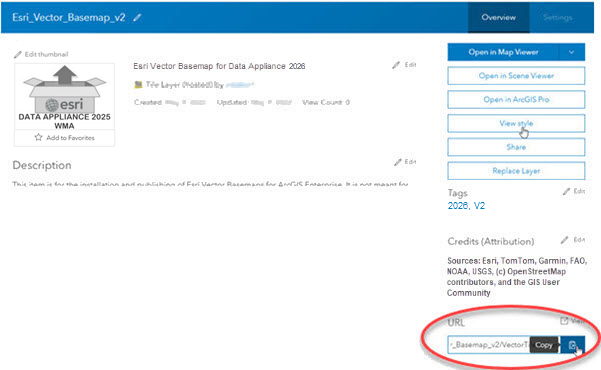
- For Vector Tile Service URL, provide the URL of the Esri Vector Basemap tile layer that you replaced above, for example, https://portalname.domain.com/server/rest/services/Hosted/Esri_Vector_Basemap_v2/VectorTileServer.
Note:
The vector tile service URL is in the URL section of the Esri_Vector_Basemap_v2 hosted tile layer item page. Click the Copy button and paste the URL in the Vector Tile Service URL parameter text box.
- For Metadata folder name, keep the default name metadata.
- To share the layers publicly, check the Share vector style web layers publicly check box.
Note:
If you are using a portal with PKI authentication, expand PKI Authorization and provide values for the PKI_Certificated_file_(.pfx) and PKI Private Password parameters.

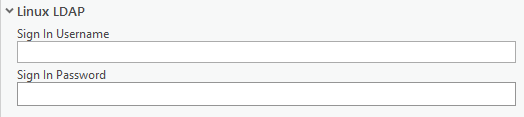
If you are using a portal with Linux LDAP authentication, expand Linux LDAP and provide values for the Sign In Username and Sign In Password parameters.
- Start ArcGIS Pro, sign in to your
ArcGIS Enterprise portal, click the Options button
- Click Run.
It can take up to a minute to update each existing style in your portal using the Vector Style Updater tool.
The VectorStyleUpdater toolbox displays a successful update message when complete.
Note:
If there are warnings, rerun the VectorStyleUpdated toolbox until you receive a successful update message.
The existing 60 World Edition WMA or GCS vector tile layers (map styles) are updated in your assigned ArcGIS Enterprise account.
Share tile layers (map styles)
The items initially created are private unless you made them public through the Publisher toolbox dialog box or by selecting the map items in your portal and changing the sharing settings.

Note:
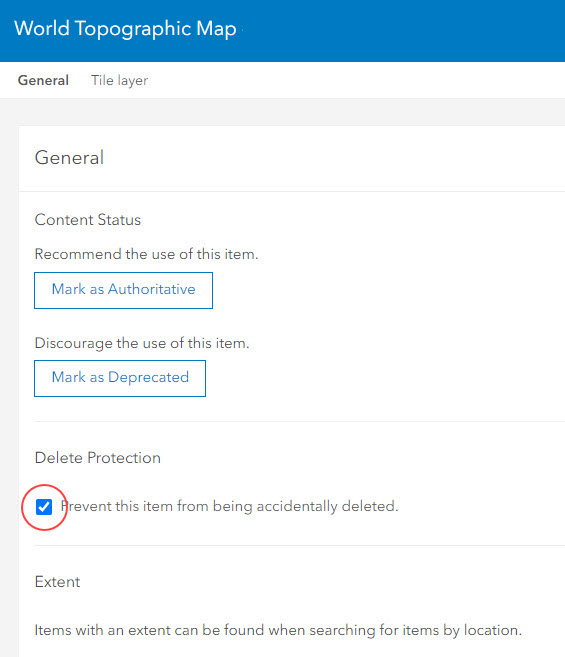
Delete protection for all items is applied on publishing the tile layers. To change the protection setting, open the item and click the Settings tab. Under Delete Protection, uncheck Prevent this item from being accidentally deleted and click Save.
Once you set up the Esri Vector Basemaps update, you can do the following: