To access all ArcGIS for Power BI features and functions, you must sign in to an ArcGIS Online or ArcGIS Enterprise account.
Tip:
If you are using ArcGIS for Power BI, when you sign in to your ArcGIS Online or ArcGIS Enterprise organizational account, an authentication token is automatically sent to your browser to recognize you as an ArcGIS user. Your organization content immediately becomes available. If the token cannot be found—for example, if you are using a different browser or computer—you must sign in to access premium features.
Guest users
Guest users can use ArcGIS for Power BI without being signed in by clicking Continue as guest on the Sign in to ArcGIS wizard.

Keep the following in mind when signing in as a guest user:
- If the map contains a secure (private) layer and you are not signed in, a blocking page will appear on the map, prompting you to click Sign In to continue viewing the content.
- Clicking Continue as guest allows you to use the visual anonymously while connected to ArcGIS Online. When in Guest mode, the Sign In option in the Login | Settings pane will only allow you to sign in to ArcGIS Online, not an ArcGIS Enterprise portal.
Guest users will be asked to enable Entra ID access through Microsoft's consent experience in order to continue to support free guest access to ArcGIS services. Learn more about how to Consent for ArcGIS Services in Power BI.
Organizational users
You can sign in using several options. If you don't have an ArcGIS account, you can sign up for a free ArcGIS trial to get started. Public ArcGIS accounts are not supported. See Accounts for more information. Check with your ArcGIS administrator about your organization's security settings,
Your sign in experience may be different based on your configuration. The ArcGIS sign-in pane may include any of the following options: ArcGIS account or organization login, SAML login, OpenID Connect login, or social media login. For more information about signing in to an ArcGIS account, see Sign in in the ArcGIS Online help.
Considerations
Keep the following in mind when signing in as an organizational user:
- If you try to sign in with an ArcGIS account with both a user role and a user type that does not have a Creator role or above, you will see the following notification indicating that map creation is restricted:

- The visual handles layers sourced from another ArcGIS Online or ArcGIS Enterprise portal that require authentication. If a layer fails to load because it requires authentication to another portal, the non-intrusive toast message shown below appears. Click Sign in to automatically go to the Layers pane, where you can find the locked layer or layers, and sign in to ArcGIS to access the layer.

Sign in with an ArcGIS Online account
To sign in with your ArcGIS Online account, complete the following steps:
- Click the ArcGIS for Power BI visualization pane
 .
.The Sign in to ArcGIS pane appears with ArcGIS Online selected by default on the Choose ArcGIS connection drop-down menu.
- Click Sign in.
The ArcGIS organization sign in pane appears.
- Provide your ArcGIS username and password.
The password is case sensitive.
If you don't know your username or password, click Forgot username or Forgot password, or contact your administrator.
- Check Keep me signed in.
You stay signed in for two weeks, unless you sign out. To stay signed in between sessions, check the Keep me signed in check box on the authorization wizard for authentication. You may need to use your email ID to verify credentials and save them.
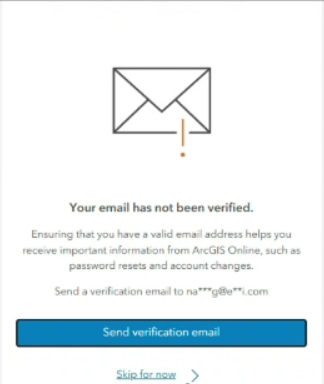
- Click Sign In.
Sign in with an organization-specific login
For ArcGIS organizational accounts configured for organization-specific logins, sign in with your existing organization-specific login.
To sign in with an organization-specific login, complete the following steps:
- From the Sign in to ArcGIS pane, expand the Choose ArcGIS connection section.
- Click Enter URL address.
The ArcGIS Online or Enterprise text box appears.
- Provide your ArcGIS organization's URL.
- Click Sign in.
The ArcGIS organization sign in pane appears.
- Provide your ArcGIS username and password.
The password is case sensitive.
If you don't know your username or password, click Forgot username or Forgot password, or contact your administrator.
- Click Sign In.
The organization's URL will appear by default in the Sign in to ArcGIS pane the next time you sign in.
Sign in with a social media account
Your account administrator must set up social network sign-in credentials before you can use this workflow.
To sign in with an organizational account created with social network credentials, complete the following steps:
- From the Sign in to ArcGIS pane, after you have selected your organization, click Sign In.
The ArcGIS organization sign in pane appears.
- Click the appropriate social media button.
For example, to sign in using your Google account, click the Google button
 .
.Note:
To join an ArcGIS organization using an Apple login, you must have multifactor authentication enabled on your Apple account.
- Provide your social network credentials and sign in.
Note:
When you sign out of ArcGIS, you are still signed in to your social network. To sign in to ArcGIS with different login information, you must first sign out of your social network.
Sign out
If you need to sign out, the option provides a way to clear your session credentials. The Sign Out option is available in the Login | Settings pane only after you have successfully signed in. Clicking Sign Out signs you out of the current ArcGIS Online or ArcGIS Enterprise portal and resets your ArcGIS for Power BI experience to the Guest user mode.
Considerations
Keep the following in mind when signing out:
- If you sign out while the map contains private layers (or private basemaps), those layers are not removed from the map visual. A blocking page appears the next time the map loads, requiring you to sign back in to view the private content.


- The Sign Out option is not available if you are using web tier authentication methods such as Public Key Infrastructure (PKI) or Integrated Windows Authentication (IWA).
- Your authentication token (which grants access to your secure ArcGIS content) stays persistent and functional until it expires.
- When the token expires (for example, after the set time, by default 14 days set by your administrator), the visual will ask you to reconnect or sign in with ArcGIS.
- Once you sign in, the visual is bound to that specific ArcGIS Online or ArcGIS Enterprise portal instance. If you sign out, your next sign-in attempt from that same visual will prompt you to sign back in to the same portal.