To use the content sharing features in ArcGIS for Power BI, your Microsoft account should include a Power BI Pro or Premium plan with capabilities to publish reports. Users without this plan cannot embed or publish reports to the web.
If your Microsoft account has the appropriate permissions, you can publish map-enabled ArcGIS for Power BI reports containing public data to the web.
Sharing reports containing public data does not require viewers of the report to sign in to their ArcGIS account. If the report contains proprietary data from ArcGIS, see the Embed a map-enabled report workflow.
After you design a map-enabled report, use Publish to web to add it to a public website or article.
Tip:
Although users typically use Power BI Desktop to create reports, this workflow is also available in the Power BI service (powerbi.com).
Requirements
To use Publish to web in Power BI, the following requirements must be met:
- It is very important to note that the Power BI data used to create the ArcGIS for Power BI map must use latitude and longitude coordinates for locations or Esri JSON or GeoJSON in the Location field well. If the Location field well contains addresses or standard boundaries, you can't publish to the web, and the whole map will need to be re-created.
- The map to be published cannot contain secure or privately owned data. Maps containing private data cannot be published to the web.
- You must be signed in to a valid ArcGIS account with a user type and role that has been granted appropriate permissions by your account administrator to publish content.
Note:
For ArcGIS users, both user role and type, should be Creator or higher when you want to edit the map and save the changes.
To embed or publish to the web, you must create and save a map with an ArcGIS Online or ArcGIS Enterprise Creator or higher account.
- A published map can contain a maximum of 30,000 locations.
- You must run the ArcGIS for Power BI publishing check.
- Viewers of the report cannot sign in to published reports.
Create and validate a map-enabled report
Before you can publish the report to the web, run the ArcGIS for Power BI Embed and publish validation check to ensure that all requirements are met.
Only shared ArcGIS layers are supported to publish to the web. Only shared basemaps are supported to publish to the web.
Only information cards without premium content are supported to publish to the web.
To validate a map-enabled report for publishing, complete the following steps:
- Sign in to your ArcGIS account and create and save a Microsoft Power BI report that includes an ArcGIS for Power BI map.
- From the map tools, click Embed
 .
.Note:
You can turn the Embed tool on and off via the Embed toggle button in the Visualizations pane, in the Format your visual section.
The Embed pane appears, with the Embed and publish validation tab visible by default.
- On the Embed and publish validation tab, under the Validation check section, check for errors.
- Click the Publish toggle button.
- Click the icons to view and address the errors. The error red cross
 indicates the reason for the occurrence of the error and what is supported. It is followed by the description of the error. Then comes the icon you click, for example, the layers icon, which takes you to the Layers pane where you can either remove the added private layer, or add a supported layer.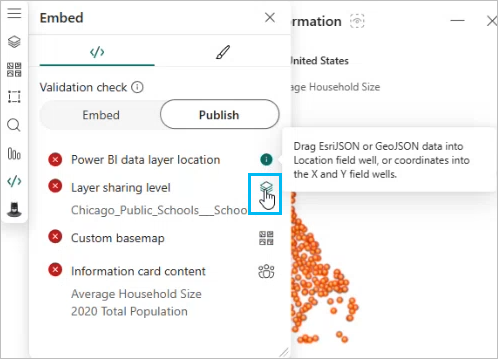
- If there are no errors, you will see a
 Ready to publish message in the pane.
Publish a map-enabled report
Once you've created and checked the map-enabled report in Power BI Desktop, you can publish it to the Power BI platform. The report must be in the Power BI service (powerbi.com) to enable embedding or publishing to the web. You generate an embed link associated with the report and copy the resulting code to the web page.
Learn more about publishing to the web from Power BI
You must open the report in the Power BI service and save the report before you can publish it to the web or embed it in a website, whether you're working with a new or existing report. This allows ArcGIS for Power BI to verify that the requirements for publishing or embedding are met.
Delete an embed code
All published reports must have a corresponding embed code associated with them. These codes are stored in your Power BI workspace and can be accessed at any time. When you delete an embed code, the associated report is no longer published and does not appear on pages where it was published.
Publish blocking page

The blocking page appears in the following scenarios:
- Your credentials expired when trying to embed a report, or you are signed out.
- You added unsupported location data.
- Issues with layer sharing level, basemaps, or information card content.