Note:
Some workflows may require specific privileges. For more information about user types, roles, and privileges, see the Accounts topic.
Use the Zoom To or Select tools on the Map Data tab to zoom to or select a specific feature or features on a map from their corresponding row, cell, or cell range in the Excel spreadsheet. See Maps to learn about maps and layers.
Use the Sync with ArcGIS tool to sync the ArcGIS Online or ArcGIS Enterprise attribute table with the connected table in Microsoft Excel. Use the Sync with PivotTable tool to sync the pivot table with the connected mapped data layer.
Use Show Related Records for showing related records in the Microsoft Excel worksheet for features on the map and to clear filters. Use Configure Location for configuring location type and fields for a layer.

Note:
For macOS, the icons are visible without the section names, for example, Navigate, Table, and Layer. For internet browsers, you may or may not see the section names depending on whether your ribbon layout is Classic or Single Line.
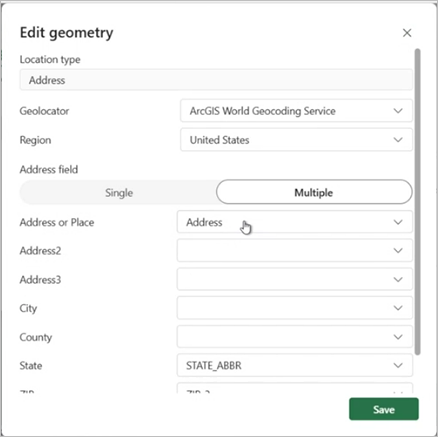
Use Edit Geometry to edit addresses of features added to the map when you add new rows with addresses.
Zoom to a specific feature from an Excel spreadsheet
You can get a closer look at details on the map by zooming to a feature.
To zoom in to a specific feature from Excel, complete the following steps:
- In an Excel spreadsheet, locate and select the rows that contain the features you want to see closer on the map.
- Click the Map Data tab.
- Click Zoom To
 .
.Note:
The map zooms in and displays the selected feature in the center of the map. If you selected multiple rows, the map zooms to show the extent of the selected features.
Select specific features on a map
Use the Select tool on the Map Data tab to select a specific feature or features on a map.
To select a specific feature or features from Excel, complete the following steps:
- In an Excel spreadsheet, locate the row or rows that contain the features you want to see on the map.
- Click the Map Data tab.
- Click Select
 .
.Note:
If you selected a single row in Excel, the unselected features on the map fade out, leaving the selected row and feature active.
- Click Zoom To to zoom in to this active feature.
Note:
You can click the selected feature to view its details in a pop-up.
Sync with ArcGIS
You can sync the ArcGIS Online or ArcGIS Enterprise attribute table with the connected table in Microsoft Excel. You can set the refresh to perform automatically at a custom set time interval by enabling the Automatically refresh layer toggle button in the Layers pane, under Properties, in the Layer refresh section.
Learn more about adding ArcGIS layer data to Excel
To sync with ArcGIS, complete the following steps:
- In an Excel spreadsheet, locate and select the rows of the imported attribute table.
Note:
You can make changes to rows or the whole table in Microsoft Excel or in the remotely hosted table in the portal.
- Click the Map Data tab.
- Click Sync with ArcGIS
 .
.
Manage editing
ArcGIS for Excel provides data edit controls and supports the Undo capability to help prevent accidental edits to feature layers and give you more control over when changes are saved.
Note:
You need permission to edit the feature layer. Editing applies to feature services added to ArcGIS for Excel.
Learn more about managing data editing controls in the Login|Settings pane
To manage editing, complete the following steps:
- In an Excel spreadsheet, locate and click the ArcGIS tab.
- Click Show Map.
- Add data from ArcGIS.
- Click the Map Data tab.
- Click the Manage Editing button
 to use the Lock Data
  or Unlock Data
  capabilities. When the edits to feature service data are done they are thus explicitly controlled.
Note:
Feature service data is locked by default. Edits are not saved while the data is locked. Edits made while data is unlocked are saved to the feature service. Locking data helps prevent accidental updates such as deleting rows instead of copying them. A notification appears each time edits are saved to the feature service.
Considerations
Keep the following in mind when editing data:
- Managing data editing helps protect feature services from unintended updates.
- Turning off automatic map saving allows you to review changes before committing them.
- Saving the map manually ensures that collaborators see the same map state when opening the workbook.
Show related records
To show related records in the Microsoft Excel worksheet for features on the map and to clear filters, complete the following steps:
- In an Excel spreadsheet, locate and click the ArcGIS tab.
- Click Show Map.
- Add data from ArcGIS.
- Click the Map Data tab.
- Locate and select the rows of the added attribute table of ArcGIS feature layers.
You can make changes to rows or the whole table in Microsoft Excel, or in the ArcGIS Online or ArcGIS Enterprise table.
- Click Show Related Records
 from the drop-down menu.
Note:
Optionally, click Clear
 to clear records. Depending on the worksheet, the button may be unavailable if it's not applicable. The ID columns from Table 1 to Table 2 are now matched.
Configure location
To configure location type and fields for either Microsoft Excel data layers or ArcGIS layers with fetched attribute tables, complete the following steps:
- In an Excel spreadsheet, locate and select the rows of the attribute table imported from ArcGIS Online or ArcGIS Enterprise.
Note:
You can make changes to rows or the whole table in Microsoft Excel or in the remotely hosted table in the portal.
- Click the Map Data tab.
- Click Configure Location
 .
.Note:
The Configure location pane appears.
- Make a selection from the Location type drop-down menu.
- Make a selection from the Geolocator drop-down menu.
- Make a section from the Region drop-down menu.
- Under Address, select Single or Multiple.
- Click Save.
Geometries are now recalculated for all existing features.
Edit geometry
Use Edit Geometry  to modify the location types, such as address or coordinates, and their associated fields.
Caution:
When the feature layer contains location data, you cannot change the Location type field.
Sync with PivotTable
A PivotTable is a Microsoft Excel tool that can be used to create a summarized table of aggregated data. Data can be sorted, filtered, and rearranged dynamically to emphasize different aspects of the data. ArcGIS for Excel can add the data from pivot tables for visualization on the map.
When you select a PivotTable on the spreadsheet that has data that was mapped as a data layer, the Sync with PivotTable tool  syncs the data between the two.