ArcGIS Drone2Map is a desktop application that turns drone images into valuable 2D and 3D information products. With ArcGIS Drone2Map, you can monitor construction, inspect critical assets, evaluate agricultural health, perform thermal analysis, and more. The sections below introduce the sign-in process, the start page, ArcGIS Drone2Map projects, and the user interface.
Sign in
The first time you use ArcGIS Drone2Map, you sign in with the credentials of your ArcGIS Online or ArcGIS Enterprise organization. After that, you can sign in automatically.
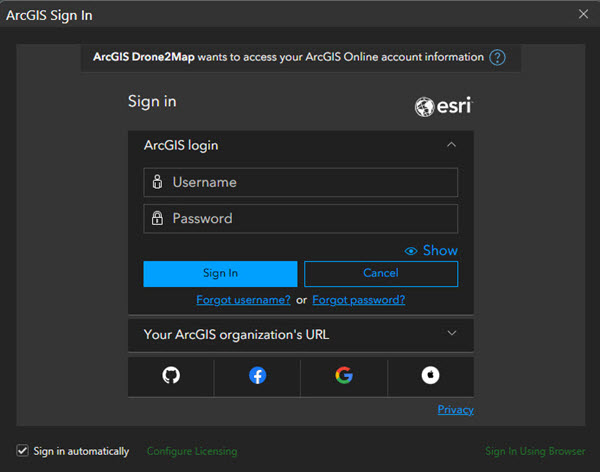
Once ArcGIS Drone2Map starts, the top of the application window on the New Project page will indicate the current active portal licensing connection. If you have more than one account, you can change this by clicking the Settings button and using either the Portal or Licensing tab to modify the login.
After a project is created, you can also switch sharing portals by using the sign-in menu at the top of the window to change your active portal to access content or share items.

New Project page
By default, ArcGIS Drone2Map opens to the New Project page. The New Project page has a Home tab, an Open tab, a Resources tab, and a Settings tab.
Home tab
On the Home tab, you can start a new project.

| Element | Description |
|---|---|
 | Click a Processing template, such as the 2D products template, to select a template for the project. |
 | Click a recent project from the list to open it. To open a project that is not in the list, click Open another project |
 | Click in the Project Name box to define a name for your project. The Project Location can also be changed by using the Browse button. |
 | Click the buttons above the table to add or remove images and define the image coordinate system. |
 | Click the Project Coordinate System button |
 | Click the Create button to create the project. This button will not be active until a processing template is selected, a project name is defined, and images are present in the table. |
 .
. to define the coordinate system used for the project and any output products.
Once images are added to the table, an Import Control button  will become available under the table. This can be used to save time by importing any ground control points during the project creation process.
Resources
Clicking the Resources tab will take you to the resources page. Here, you can find resources to help you develop skills, solve problems, and answer questions.
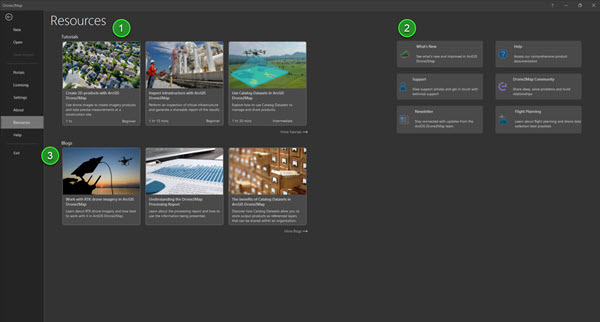
| Element | Description |
|---|---|
| Quick-start tutorials introduce common ArcGIS Drone2Map functionality and workflows. |
| You can access product documentation, learning materials, training, news, and the Esri Community site. |
| Blogs that cover materials related to an area of practice. |
For more information on the resources page, see Resources.
Sample drone datasets to get started in ArcGIS Drone2Map can be found through the Sample Drone Datasets site.
Settings
On the Settings tab, you configure and manage the application. In an open project, the settings can be accessed from the Project tab on the ribbon.
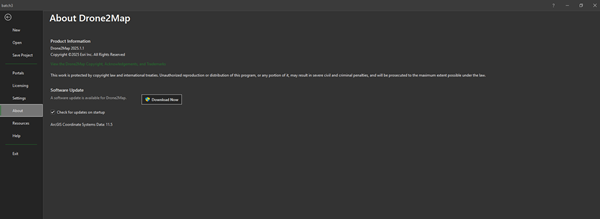
| Tab | Description |
|---|---|
New | Create a project. |
Open | Open an existing project. |
Save Project | Save the current project. |
Portals | Manage portal connections and set the active portal. |
Licensing | View license information, authorize Drone2Map to work offline, and change the license type. |
Settings | Opens the settings window, where you can configure various application and project-specific settings. |
About | View information about your ArcGIS Drone2Map version and update to the latest version. |
Resources | Access quick-start tutorials, documentation, and other learning resources. |
Help | Open the online or offline help system. |
Exit | Close the application. |
Projects
In ArcGIS Drone2Map, a project is a body of related work that may include maps and connections to resources such as system folders and databases. Project files have the extension .d2mx. By default, a project is stored in its own folder along with an associated file geodatabase.
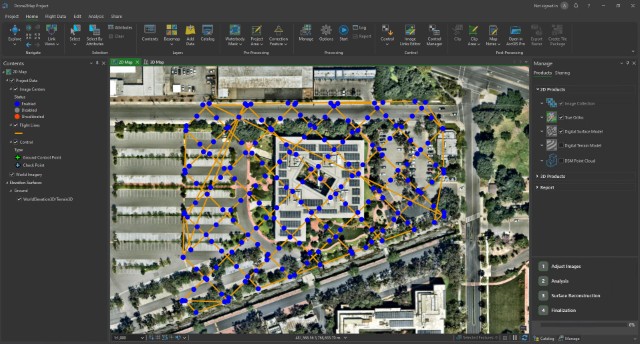
ArcGIS Drone2Map user interface
The main parts of the ArcGIS Drone2Map interface are the ribbon, views, and panes.
Ribbon
A horizontal ribbon at the top of the application window organizes functionality in a series of tabs. Some tabs, called core tabs, are either always present or present when a certain type of view is active.
Contextual tabs are present when the application is in a particular state, such as when a certain type of layer or a layer with specific properties is selected in a map. For example, when you select a feature layer in the Contents pane of a map, the Feature Layer contextual tab appears. When you select a raster layer in the Contents pane of a map, the Raster Layer contextual tab appears.

| Element | Description |
|---|---|
| Core tabs organize functionality. When a tab is selected, its associated tools and buttons appear on the ribbon. |
| Contextual tabs—such as Feature Layer—appear when the application is in a state appropriate for their use. |
| Click a dialog box launcher to open a dialog box or a pane related to items in a group. |
| Click Ribbon Display Options to choose between the classic ribbon or a simplified ribbon. You can also collapse the ribbon and show its tabs only. |
Views
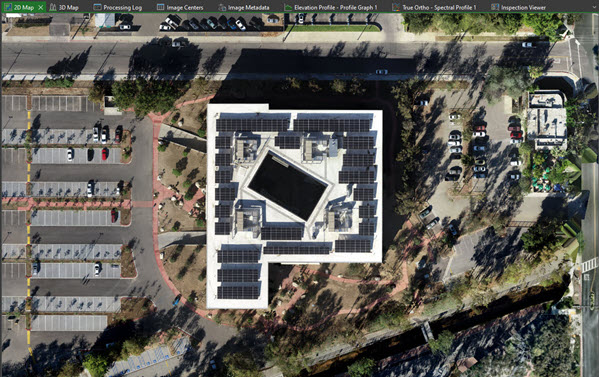
Views are windows for displaying and working with representations of your data, such as 2D and 3D maps, tables, charts, and logs. You can only select and work with one view at a time. The selected view is called the active view.
You make a view active by clicking the tab at the top of the view window. When a view is active, its tab is green. You can drag the active view by its tab to a different position in the ArcGIS Drone2Map window or outside the window. Ribbon tabs and commands may change according to the type of view that is active.
Panes
A pane can display the contents of a view (the Contents pane), the items in your project or active portal (the Catalog pane), or commands and settings for an area of functionality (the Symbology pane, Create Features pane).
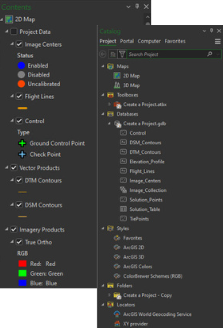
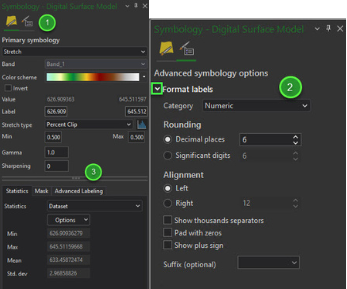
Panes provide functionality that may not be available on the ribbon. They organize functionality using rows of text tabs and graphical tabs. Some panes have multiple pages.
| Element | Description |
|---|---|
| Graphical secondary tabs partition the functionality of a primary tab. |
| Expanders are small arrows that you click to show or hide settings. |
| Handles allow you to resize areas of a pane by dragging. |
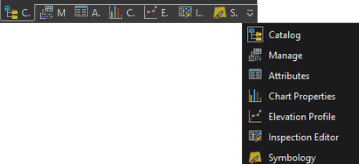
The Contents and Manage panes are always open by default when creating a project. Other panes appear in response to commands or actions. For example, when you click Select by Attribute on the Home tab of the ribbon, the Attributes pane appears.
You can close panes or leave them open. You can click a drop-down arrow to display the full name of each pane.
Arrange the user interface
You can arrange the elements of the user interface in various ways:
- Drag panes and views to docking targets.
- Float panes and views above or away from the application window (including on a different monitor).
- Minimize floating views.
- Divide view space into vertical or horizontal tab groups to display more views.
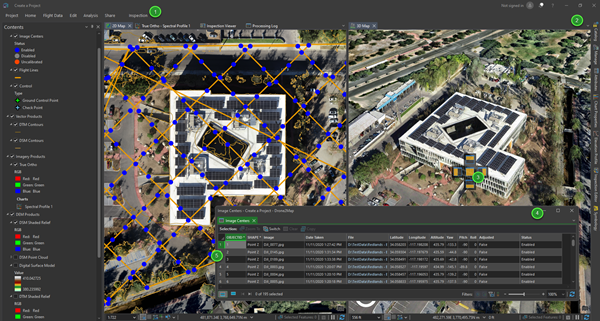
| Element | Action | Method |
|---|---|---|
| Collapse the ribbon and show ribbon tabs only. | Double-click a tab. |
| Automatically hide a pane to minimize it when not in use. | Click Auto-Hide in the pane's title bar. Alternatively, press Alt+Hyphen for options. |
| Dock a view. | Drag a view by its tab and drop it on one of the docking targets that appear. Alternatively, right-click the view tab of a floating view or press Alt+Hyphen for options. |
| Minimize a floating view. | Click the minimize button on the view. To restore the view, hover over the ArcGIS Drone2Map icon on the Windows taskbar and click the view. |
| Float a view. | Drag a view by its tab and drop it away from docking targets. Alternatively, right-click the view tab or press Alt+Hyphen for options. |