When you create a hosted feature layer in ArcGIS Online that has z-values enabled, the z-values are set to 0 by default. When you publish data from ArcGIS Pro that has z-values, you can specify a different default value. In both cases, you can alter the default z-value for each sublayer in a hosted feature layer from the sublayer's item page.
- Sign in to the organization.
To update the default z-value, your account must be one of the following:
- The layer owner
- A member of the default administrator role
- A member of a custom role with the set of privileges to manage all content owned by organization members
- A member of a shared update group with which the feature layer has been shared
- Open the item page for the hosted feature layer or hosted table.
- On the Overview tab, click the sublayer to open its item page.
- In the Geometry options section, click the Edit button
 and type a new default z-value.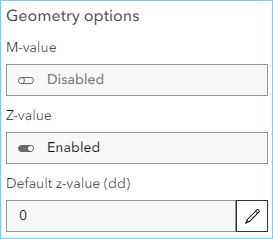
Z-values must be provided in the units that the feature service uses. Units are shown in parentheses. In the example above, the units are decimal degrees (dd).
You can alter the default z-value only if z-values are enabled for the sublayer. You cannot enable z-values for a sublayer if they were not present when the hosted feature layer was created.
- Click Save.