Learn what's new and improved in ArcGIS AllSource 1.5.
Get started
- A canceling status has been added to the Tasks tab in the Diagnostic Monitor window to indicate that cancellation of a task is in progress.
- You can keep the current ribbon tab active when switching views so that the same set of ribbon commands is available as you work.
Analysis and geoprocessing
General
- The attribute table view includes the Calculate Field Toolbar. Use the toolbar to make field calculations without opening the Calculate Field tool.

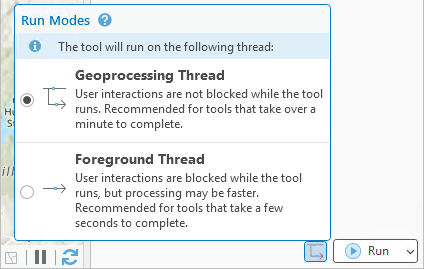
- You can run geoprocessing tools on the geoprocessing thread or on the foreground thread. The foreground thread may be faster but blocks interactions with ArcGIS AllSource while the tool runs. The geoprocessing thread runs a tool in the background, keeping the interface unblocked. These options are available on the Run Modes button on tools opened in the Geoprocessing pane.
- Check the Show toggle to add output datasets to open map option in the Geoprocessing options to add the Add to Map toggle button to geoprocessing tools. You can use the toggle button to add tool output to the active map.
- The Select By Attributes and Select by Location tools, when opened in a floating window, include the Export Selection button, which you can use to save a selection as a new dataset.
- You can customize date parameters on custom tools with Date Only and Time Only controls by setting the parameter's controlCLSID property in the ToolValidator class.
Charts
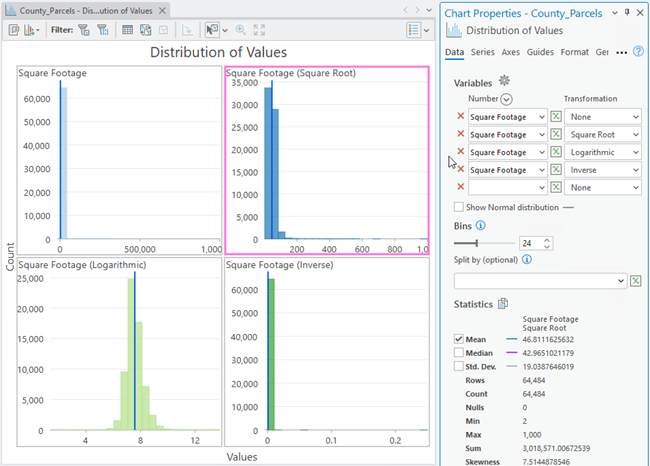
- Grid histograms can be created by selecting multiple numeric fields. Different transformations can be applied to each field.
- Series colors can be updated using a predefined color scheme.

- Style options can be applied to multiple series at the same time by selecting the rows of interest in the series table.
- Text styles for series data labels and guide labels can be applied individually.
- A moving average overlay can be added to temporal line charts to smooth out temporal trends.
Data Engineering
- Data engineering can be performed on raster attribute tables.
Network Analyst extension
- The Field Script Evaluator and Element Script evaluator dialog boxes have been enhanced with aids for writing evaluator expressions.
ModelBuilder
ModelBuilder has a new look, making it both visually modern and more consistent with ModelBuilder in ArcGIS Online. See ModelBuilder redesign in the Highlights section.
Raster functions
The Linear Spectral Unmixing function was enhanced in the following ways:
- The Remove Continuum parameter specifies whether the spectra are or are not normalized from an image or reference data.
- The Training Feature parameter supports the Esri Spectral Library (.esl), and ENVI Spectral Library (.sli) file formats.
Geoprocessing tools
Data Management toolbox
Attribute Rules toolset
New tools:
- Calculate Geometry Fields Attribute Rule—Generates an attribute rule that calculates a feature's geometry information and writes it to a specified field.
Fields toolset
Enhanced tools:
- Add Fields (multiple)—The Field Properties parameter includes additional field properties: Field Precision, Field Scale, Field supports null values, and Field is required.
- Calculate Field—The Expression parameter interprets high precision date values as IS0 8601 string values instead of strings that use regional date and time settings.
- Calculate Fields (multiple)—The SQL expression type is supported for mobile and file geodatabases.
General toolset
Enhanced tools:
- Append—The Update Geometry parameter is supported when the Optimize performance for feature services parameter is enabled.
- Delete Identical—The Field parameter supports the big integer field type.
- Find Identical—The Field(s) parameter supports the big integer field type.
Geodatabase Administration toolset
Enhanced tools:
- Migrate Object ID To 64 Bit—Supports attribute rule validation tables as input datasets.
Package toolset
Enhanced tools:
- Create 3D Object Scene Layer Content—Supports multipatch feature classes as input datasets.
- Generate Level Of Detail—Supports layers as input datasets.
- Upgrade Scene Layer—Supports layers as input datasets.
Raster toolset
Enhanced tools:
- Alter Mosaic Dataset Schema—Two supported satellite sensor options were added to the Raster Types parameter: EnMAP and PACE OCI.
Table toolset
Enhanced tools:
- Get Count—Performance is improved when using enterprise geodatabase datasets and feature services as input.
Toolbox toolset
Enhanced tools:
- Analyze Tools For Pro—For Python 2 to Python 3 upgrade issues, this tool uses the fissix module to review Python code. The fissix module is a modernized backport of the deprecated Python lib2to3 library.
Workspace toolset
New tools:
- Compare Schema—Compares two schema reports or geodatabase schemas and produces a dynamic HTML report. See Geodatabase schema reporting in the Highlights section.
- Create Parquet Cache—Creates a local persistent cache of the data for the input Apache Parquet file.
Enhanced tools:
- Generate Schema Report—Creates a dynamic HTML report with improved layout and navigability. See Geodatabase schema reporting in the Highlights section.
Server toolbox
Enhanced tools
- Upload Service Definition—Supports publishing knowledge graph service definitions to ArcGIS Enterprise 12.0 or later.
Spatial Analyst toolbox
New tools
- Adjust Stream to Raster—Generates a stream feature output that matches the resolution of an input raster.
- Value Percentile Contours—Creates polygons that enclose the top (or bottom) percentile of the map by raster value that provides a clean, area-based view of the extremes
- Volume Percentile Contours—Creates polygons that enclose the top (or bottom) percentile by volume of a probability density distribution.
Enhanced tools
- Multivariate tool Band Collection Statistics—Has the following improvements:
- Use the new Compute histogram parameter to calculate and add histogram statistics to the output statistics file that can be imported to other software (such as Excel) for further analysis, or visualization. The new parameters Number of Histogram Bins, Output Histogram Table, and Output Histogram Name allow you to create a histogram graph.
- The Output Statistics File parameter can now also output to .csv and .md files.
- The tool now also accept the following environments: Cell Size, Cell Size Projection Method, Extent, Geograpic Transformations, Mask, Output Coordinate System, Snap Raster.
- Segmentation and Classification tool Linear Spectral Unmixing—For the Output Value Option parameter, a new option Remove Continuum will specify that the spectra will be normalized from an image or reference data.
- Surface tools Aspect, Feature Preserving Smoothing, Geodesic Viewshed, Multiscale Surface Deviation, Multiscale Surface Difference, and Multiscale Surface Percentile—Now accept the GPU ID and Processor Type environments.
- Zonal tools Zonal Statistics and Zonal Statistics as Table—By default, the tools will leverage up to 80 percent of all available processors.
Spatial Statistics toolbox
New tools
- Evaluate Bin Sizes for Point Aggregation—Evaluates multiple hexagonal or square bin sizes for aggregating point data, and recommends a bin size that balances internal uniformity within bins and a variety of point counts across bins.
- Evaluate Predictions with Cross-validation—Evaluates predictive model performance using cross-validation. The tool allows models created using the Forest-based and Boosted Classification and Regression, Generalized Linear Regression, and Presence-only Prediction (MaxEnt) tools.
- Prepare Data for Prediction—Enhances data for predictive workflows by splitting features into training and testing sets, balancing categorical data, and spatially thinning to reduce sampling bias.
Enhanced tools
- Generate Spatial Weights Matrix:
- The Input Features parameter accepts feature layers.
- The Unique ID Field parameter accepts object ID fields such as OID, FID, and OBJECTID.
- For polygons, neighbors can be defined using higher-order contiguity. For example, second-order contiguity includes all neighbors that share an edge or border with the focal feature (the first-order neighbors) and all polygons that share an edge or border with the first-order neighbors.
- Neighbors can be weighted using distance-based kernels, field values, or the length of shared border (for polygons).
- Weights can be defined between each feature and itself (self-weighting).
Data management and workflows
Editing
Military Overlay
Several enhancements have been added to Military Overlay, including the following:
- Military Overlay favorite symbols are now stored within the user's roaming profile making these symbols available for use on other machines.
- The Addition of military standards MIL-STD-2525B Change 2 and MIL-STD-2525E.
Imagery and remote sensing
General
- Two new SAR imagery stretch types are available: Square Root and Logarithm.
Oriented imagery
- You can digitize features directly on top of images using the Oriented Imagery Viewer.
- You can navigate between images in the Oriented Imagery Viewer using sequence-based or direction-based navigation.
- You can measure distance, area, and location by intersecting vectors from measurement points captured from two different viewpoints.
- You can point the Oriented Imagery Viewer to a JavaScript Maps SDK API that is locally hosted or hosted on an ArcGIS Enterprise portal. This allows you to work with oriented imagery offline.
- In ArcGIS Enterprise 12.0, you can access imagery stored securely in Amazon Web Services or Microsoft Azure private cloud environments.
- The Oriented Imagery Viewer now supports browser-compatible video playback. You can interact with videos using play, pause, video slider, and volume controls.
Mapping and visualization
General
- The data sources of feature datasets are shown on the List By Data Source tab
 of the Contents pane.
 - Horizontal and vertical scrollbars can be added to the edges of a map. This is not available in scenes.
- Feature selection can be shown using feature geometry instead of feature symbology.
- You can select features by right-clicking a symbol class in the Contents pane of a map.

- The state of the selection tool is persisted after the application is closed.
- Feature selection performance was improved in maps with complex masking configurations and when the source data is in enterprise geodatabases.
3D scenes and layers
- You can visualize high fidelity photorealistic scenes with Gaussian splat layers. See Gaussian splat layers in the Highlights section.

- The Google Photorealistic 3D basemap provides access to textured buildings and terrain anywhere on earth. See Google Photorealistic 3D basemap in the Highlights section.
- You can change the displayed distance unit from the coordinate display at the bottom of a scene.
- Profile views can be created along a line or along a selection.
- 3D polygons in scenes draw using an improved tessellation method that results in more consistent and better triangulation.
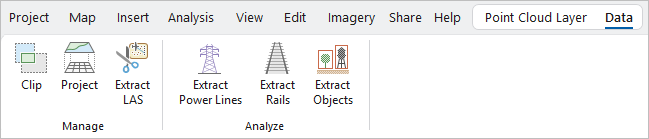
- The Data tab on the ribbon for point cloud scene layers and integrated mesh scene layers allows access to geoprocessing tools.
Layouts
- You can add a layer to a legend from the legend context menu.
- Scale bars include an Ends and first division number frequency display option.
- Dynamic text tags for page width, page height, page unit, and page size name were added.
- Formatting tags for displaying time zones in date and time dynamic text elements were added.
- Formatting tags for displaying MGRS and USNG parts in coordinate dynamic text elements were added.
Pop-ups
- Flood simulation element information can be included in a pop-up Fields element.
- Image, chart, and carousel elements support alternative text.
- Chart elements fill their available space, and the 10-field maximum has been removed.
- You can right-click a feature or record in the results list to select the layer or table in the Contents pane.
- Display expressions are listed in the Field drop-down menu as {expression/displayExp}.
- Utility network association elements that have been configured online are visible but read-only.
Presentations
- You can insert multiple map pages by selecting multiple maps and scenes.
- You can create multiple image or video pages by selecting multiple image or video files.
- You can add speaker notes to a presentation that are visible only to the presenter.
- You can interact with a video page displayed in full screen in the following ways:
- Control automatic playback.
- Mute sound.
- Use a progress bar to go to specific points.
Reports
- The Details subsection can be configured to contain multiple columns.
- Two new mailing label templates are included by default.
- Graphics that cross a page break are clipped proportionally at the break instead of being pushed to the next page.
Styles
- Additional tags were added to the colors and color schemes in the ArcGIS Colors system style to support searching.
Symbols
- Physically based rendering (PBR) of material properties in glTF markers was enhanced to support additional PBR extensions (KHR_MaterialsIOR,
KHR_MaterialsSpecular,
KHR_MaterialsClearcoat,
and KHR_MaterialsTransmission). This allows realistic rendering of transparent, tinted, or translucent glass, specular highlights, and clear coat properties.

- Advanced compression for mesh geometry, defined by the KHR_draco_mesh_compression extension, allows smaller transmission sizes of glTF markers.
Timelines
Several enhancements have been added to timelines, including the following:
- Performance enhancements for improved drawing
- Updated symbology with the addition of the Timespan Symbology pane
- Enhanced swimlane management with the addition of Expand All, Collapse All, Cascade Timespan, Stack Timespan, and Category Definition controls
Production
Clearing Grids
- The workflow to insert number features in a series has been improved to allow subsequent feature values to be incremented and to specify when the incremented values stop.
- Customization options have been improved and combined into a single options dialog box.
Projects
General
- When a project you open is missing a required item, such as the default geodatabase or toolbox, you can choose how to repair the default item. You can have ArcGIS AllSource create a new default item, or you can browse to an existing item. You can also create a new item in a location you choose.
- When you search a project, the total number of results is displayed in the Catalog pane. Up to 100 search results can be displayed at a time. You can click links to display more results or all results.
- When you select and rename a file-based item in the Catalog pane or a catalog view, its file extension is not selected.
- On the Computer tab of the Catalog pane, context menus are available for items under Windows Home, local drives and network shares under This PC, libraries, and desktop folders.
- You can use view scroll buttons to see open views that are not currently visible.

- You can create an ArcGIS Server connection file using an ArcPy script or the ArcGIS .NET SDK.
- You can use keyboard shortcuts to do the following:
- Left arrow key—In the Catalog pane, a catalog view, or browse dialog box, select container items, such as folder or geodatabases, and collapse their contents.
- Backspace—In a catalog view or browse dialog box contents list, perform the same function as the Back button
 .
.
Python
ArcPy
- The AddMessage function supports adding clickable links in a message.
- The EnvManager class can be used as a function decorator to set environment settings for the duration of a function.
- The following context managers were added. Each can also be used as a function decorator.
- LogHistory—Controls whether information about the operation of geoprocessing tools is written to an external log file.
- LogMetadata—Controls whether metadata is included when running geoprocessing tools.
- SeverityLevel—Controls how geoprocessing tools raise exceptions.
Data access module
- The CreateTable function creates a table or feature class with a defined set of fields in a specified location.
- The Editor class includes a version argument to set the version that is associated with the edit session. The Editor object's workspace argument accepts an arcpy.Describe().workspace object, which contains version information and a layer for common script workflows.