Incorporating control points into an ArcGIS Drone2Map project provides improved accuracy for output products that can be used for precise measurements. However, the process of getting control points linked in a project can be laborious and time consuming. To address that, Drone2Map now offers functionality to automatically link control points during the adjustment process. Deep learning models are used to detect certain types of control markers in the project images.
Auto link control options
There are two ways to use auto link control. You can either set the control points to be automatically linked or set the control points to be automatically linked and adjusted.
The first option (auto link) links the control points in the associated images but does not incorporate the control points into the adjustment process. Use this option to have more control over the placement of links in images by reviewing and editing the links in the control manager. This option requires rerunning the process to incorporate the control points into the adjustment.
The second option (auto link and adjust) links the control points in the associated images and incorporates the control points into the adjustment. Use this option if you are confident that the control point marker can be accurately detected and linked. This option is best for a single process that allows for control point markers to be detected, linked, and adjusted, and products to be created all in the same processing run.
For details about auto link control workflows, see Use auto link control.
Supported control point markers
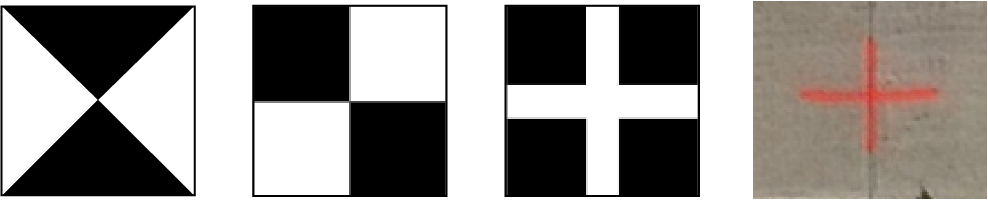
The automated control point detection capability of Drone2Map currently supports a select number of control point markers. Below are the type of control markers currently supported:
Supported flight modes
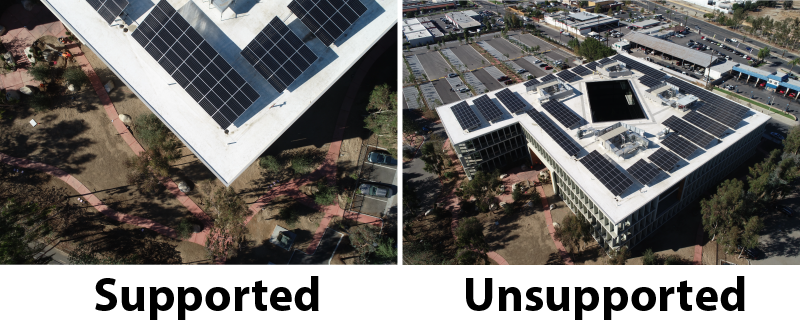
Additionally, the detection process can only be used with projects that have nadir-looking imagery. If you attempt to use automated control linking on an oblique angled flight, the points may fail to be detected. Additionally, the altitude values of the drone images must be accurate, as images with altitudes too far below or above the ground elevation may not detect control point markers accurately. These are limitations of the first models in use and will improve over time.
Supported and unsupported flight modes are shown in the following images:
Performance
Auto link control uses Deep Learning Libraries for ArcGIS Drone2Map. These libraries use supported NVIDIA GPUs to detect and link control point markers. It is recommended that you use NVIDIA GPUs with a CUDA compute capability of 7.5 or higher and 8 GB of VRAM. More powerful GPUs will decrease the time required for control point markers to be detected and linked.
For more information about the hardware requirements for using auto link control, see ArcGIS Drone2Map system requirements.
Best practices
The following are recommendations for getting the best results from auto link control:
- Use ground control point markers like those that are pictured above to achieve the best detection results.
- Ensure that the imported control points are in the correct coordinate system and match how they were captured.
- Ensure that drone image altitudes are close to the elevation of the control markers.
- Spread ground control points evenly throughout the project area, if possible, when performing a flight.
- Avoid flying on overcast or cloudy days to reduce the chance that ground control point markers will be covered or in heavy shadow.