To access the tutorial projects in ArcGIS CityEngine, open CityEngine and click Help > Download Tutorials and Examples in the main menu. After choosing a tutorial or example, the project is automatically downloaded and added to your CityEngine workspace.
This tutorial was created in collaboration with Devin Lavigne of Houseal Lavigne Associates.

Working with your own data
Working with GIS data is a critical workflow for urban planning. This tutorial introduces you to file geodatabase imports and how actual GIS information can be used to procedurally create a 3D city.
When existing GIS information exists, CityEngine can import the data and provide you access to geometry along with all its spatial attributes. For instance, a parcel with setback information can pass this information on to CityEngine to quickly generate zoning envelopes, or existing land use information could be used to generate a prototypical building. You may find this particularly useful if you are working on a redevelopment concept or fitting the concept into an existing development context. In this situation, the existing context can be easily generated from existing GIS information, and redevelopment opportunities can be applied to specific parcels.
This tutorial is built around an actual use case, in which CityEngine was used to assist the City of Detroit in quantifying and visualizing infill development. In May 2021, the U.S. Department of Housing and Urban Development (HUD) selected Detroit as a winner of its highly competitive and coveted Choice Neighborhoods grant program. The $30M HUD grant helps bring 500 affordable housing units to Detroit’s Corktown Neighborhood, a revitalizing neighborhood situated west of downtown Detroit.
Detroit’s plan for this area draws upon the Greater Corktown Framework, which was developed following an 18-month effort by the City Planning and Development Department and the Housing and Revitalization Department. City leaders, residents, community organizations and nonprofits, and the private development community worked together to create Detroit’s bid to revitalize areas of the neighborhood and address challenges. The Greater Corktown Framework calls for:
- Replacing distressed publicly assisted housing.
- Improving outcomes of households regarding education, employment, and health.
- Better integrating affordable and market rate housing to ensure a welcoming and diverse community for all.
- Reinvesting in distressed areas to offer amenities and assets, such as improved safety and early childhood education.
As a follow up implementation action to the Greater Corktown Framework, CityEngine was used to visualize the framework’s recommendations and policies, and its dashboards and reporting were used to help inform the grant application and future decision making. This tutorial uses the city’s GIS information to work through this project in a similar fashion.and covers the common workflows and tasks associated with working with existing GIS information.
Importing your data
In the first step of this tutorial, you will import features or layers from a file geodatabase, along with a georeferenced aerial image into your scene.
A scene has already been created for you with georeferenced information and bookmarks unique to this study. To open it, expand the Essentials_Work_with_GIS_Data tutorial folder in the Navigator window and click the WorkingWith Data.cej in the scenes folder.
Import layers
You can import the data with the menu by going to File > Import. Select File GDB Import located in the CityEngine Layers folder in the dialog box.

This opens the File Geodatabase dialog box and allows you to browse to the Corktown.gdb file geodatabase within the \Essentials_Work_with_GIS_Data\data folder of the project.

Tip:
Alternatively, you can right-click the Corktown.gdb file geodatabase in the data folder within the Essentials_Work_with_GIS_Data project and select Import. While this may seem easier, keep in mind that this tutorial has moved the data into this directory for you. The File > Import method allows you to browse to geodatabases anywhere on your computer or network.
Before you import the layers, you want to make sure you uncheck Create Block/Lot Shapes from Graph checkbox. Since you are using actual parcels, you do not need to have CityEngine create blocks and parcels for you.

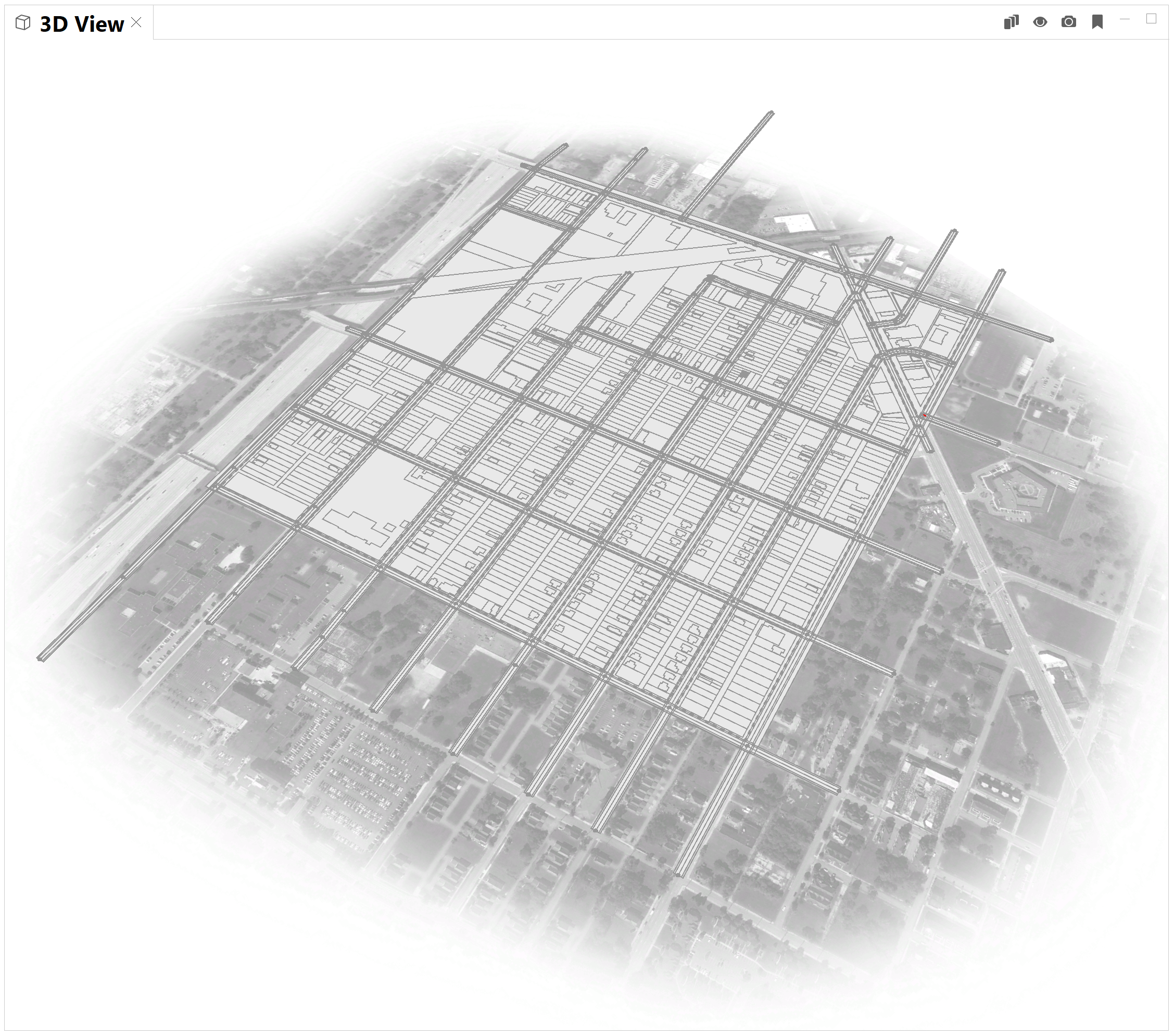
Uncheck the \Corktown\Buildings_Detroit dataset and click Finish. Once all the data is imported into your scene, it should look like the image below.

Import aerial image
To import the aerial image, browse to the \maps\CorktownAerial folder in Navigator. Drag the Aerial Base.jpg file into the scene, which launches a dialog box to complete the import. Save the scene and notice that the updated scene appears in bold in the scene folder.

In the Import dialog box, select Texture Import and click Next. On the next screen view the coordinate location and dimensions of the aerial texture. Click Finish.


An image layer named Texture Aerial Base is created and added to the scene.
Cleaning up the street network
One of the first steps when working with the streets is to perform some common clean-up that can be expected when working with your own data, before applying CGA rules.
You may notice that the street centerlines extend beyond the study area and have different lengths. You want to shorten them, so that they just slightly extend the crossings. This is a more stylistic change, but it looks cleaner and helps to keep the focus on our study area.
Set layer visibility
Begin by manually turning off the visibility for all of the layers except the StreetCenterlines_Corktown layer. This allows you to focus on this layer without the distraction of the other information.

Shorten street segments
Press D,C on your keyboard to display the compass in the Viewport window. Notice, that on the south side of the street network there are some segments with multiple nodes and one that is longer than the rest.

Press D,G to hide the grid. Next, use the Guide Creation tool  to select the edge of the segment farthest to the right (east).

Drag the guide to the left (west) and back (north). This guide will be what is used to shorten the street segments.

Now, click Street editing tools  and the click Merge Nodes
  tool in the Tool Options window
  . Click to select a node south of the guide and click the guide to shorten the segment. Do this workflow for all nodes south of the guide.

For segments with multiple nodes south of the guide, ensure that Snapping option is enabled in the Merge Nodes tool options and click and drag to select the nodes.

Once the multiple nodes are selected, click the guide. The selected nodes are now merged and aligned with the other shortened segments. Right-click the Guides layer in the Scene Editor window and click Delete Press D,G to turn on the grid again to confirm that all segments are on the same plane.


Fix conflicting shapes
You may have noticed that a couple intersections in the northeast section of the street network have errors that need fixing. These are called conflicting shapes and it occurs when there is not enough room for CityEngine to create the geometry associated with the intersections and nodes.
First, select the diamond shaped node that is displaying an error.

In the Inspector window, the Node Parameters section appears displaying the Curb Radius parameter. Change the Curb Radius value from 3 to 2 and the error should be resolved.

You’ve just updated the corner radii for every curb connected to that node. In the Node Parameters section, you also have the ability to control the radius of each individual corner by expanding the Curb Radius tool  .
.
Now, navigate to the remaining node with the conflicting shape.

To quickly fix this using the Remove Nodes tool  , click Street editing tools and click the Remove Nodes tool. Click the node to remove it. Leave the default Fit to Curve option enabled.

From here, click the Edit Street/Curves tool  to slightly adjust the tangent of the curve using the green handles.

Simplify corner
There is one other issue with the data you imported. In the northwest part of the street network, there is a curved joint indicating another error. Zoom in to see where it is selected in the following image:

Probably, either the data included a z value (height), or CityEngine has arched the street upwards when attempting to align the segment. With a closer examination, you can see that there are three nodes at this corner. As a general tip, the less nodes/vertices in your graph network, the less conflicts you will have and the easier it is to adjust the graph network.

Looking somewhat from above, use the Merge Nodes tool to click and drag to select the three corner nodes.

Click the far-left node to merge them all into the one corner node. Notice that the higher nodes will also align to match the elevation of the far-left node as well.
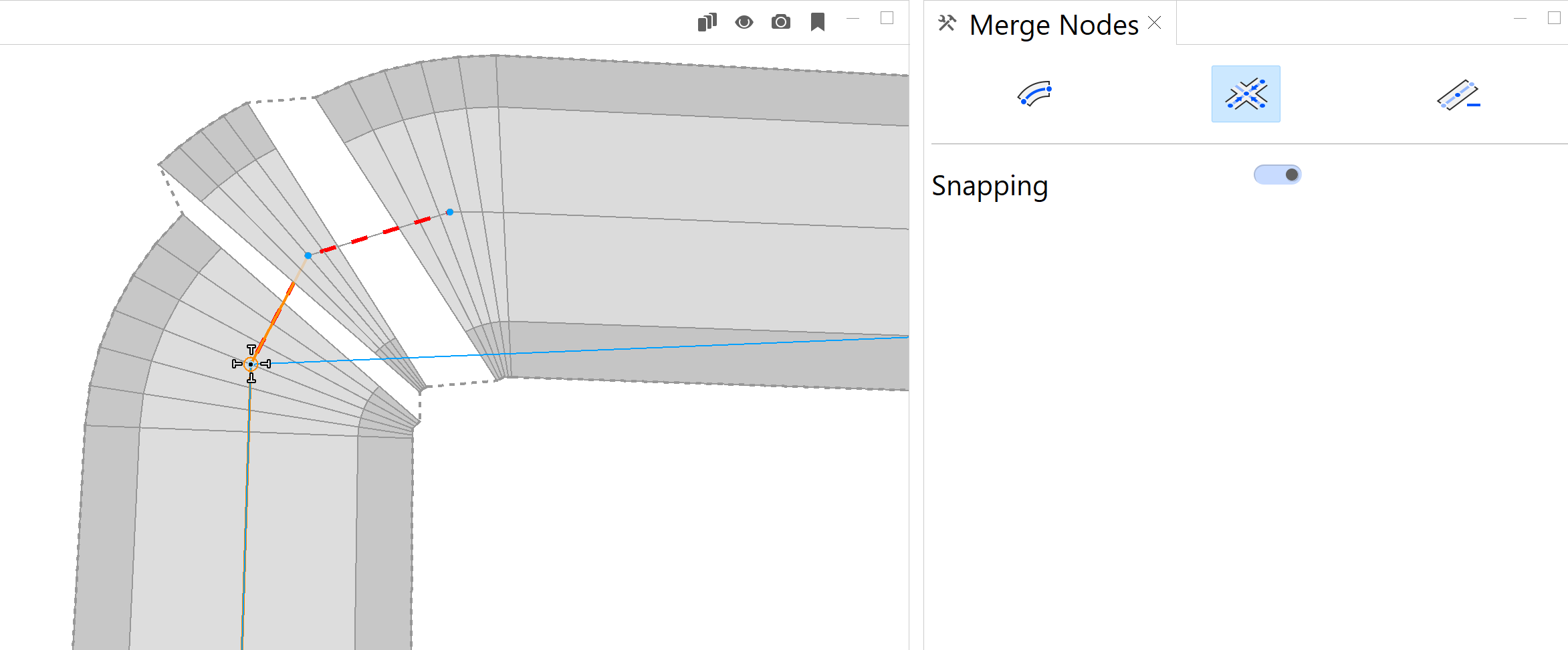
In the Scene Editor window, turn on the Texture Aerial Base layer to verify that the streets are on the same relative plane. Click the Edit Street/Curves tool and use the yellow disk to align the curve better to the street on the imagery.

Uncheck the Texture Aerial Base layer to hide it again.
Working with ESRI.lib rules
A CGA rule turns the shapes into 3D models. The rule files you will apply to the streets have already been created and are provided in the ESRI.lib project that is available in CityEngine workspaces. ESRI.lib contains a library full of useful resources, such as CGA rules, assets, and street configurations. They help you get started with your projects. ESRI.lib is automatically installed in your CityEngine workspace.
Select the street shapes
Select all the shapes associated with the centerlines. There are a few different ways to select objects: manually with the Select tool  (Q) , with the Select menu, or right-clicking the StreetCenterlines_Corktown layer in Scene Editor and click Select Objects.
Assign rules
With all the shapes selected, you can now apply a street configuration that assigns CGA rules to each of the lane shapes within each segment. Under Street Configuration in the Inspector window, choose the Simple_Street_Generic_2VL_13.20m street configuration.

If you zoom in you will notice that the nodes do not have a color indicating that the configuration has not been applied at the intersections. They require a different logic. While the street network is still selected, look at the Inspector window to see the following icons:


Click Node Roadbed to set the node rule to the /ESRI.lib/rules/Streets/Node/Default_Node.cga rule for the node roadbed shapes.

Click Node Sidewalk  to assign the Default_Node.cga rule to the node sidewalk shapes as well.

You will not see the nodes with the rule
applied displaying the dark asphalt unless you click
the Generate tool  (Ctrl+G).
The simple street model generates in your scene. Turn on the parcels visibility to provide context for your updated streets:

Working with the existing buildings
One of the layers imported into your scene was the Buildings_Corktown layer which contains the existing buildings in the neighborhood. You can use existing information to transform them, with the help of CGA, into 3D models.
Before continuing, make the Buildings_Corktown layer visible and hide all other layers in the Scene Editor.
Object attributes
One of the key benefits and reasons for working with your own GIS information, are the attributes that get mapped to the shapes in CityEngine. The data for the footprints in the project includes five attributes that you can use to drive the generation of your models – STORIES (for height), and DESCRIPTION (for roof forms), and RED,GREEN, BLUE (for the building’s color).

Apply Detroit buildings rule
Use the DetroitBuildings.cga rule located in the rule folder to apply to the existing buildings. This process is the same as to how you applied rules to the streets earlier in the tutorial. Right-click the Buildings_Corktown layer in the Scene Editor window and click Select Objects. All the footprints are selected.
Now, instead of assigning the rule in the Inspector window, drag the DetroitBuildings.cga rule from the Navigator window onto the selected building shapes.

Since the rule was dragged directly onto the building footprint shapes, they automatically generate.
Note:
Assigning a rule through the Inspector window will not automatically generate models however, dragging a rule file onto shapes in a scene will generate automatically.

Automatic field mapping
The 3D models generate automatically because of the way the data was prepared and how the CGA rule was written. Since the CGA rule contained attributes with the same names as the fields from the GIS data, the field mapping occurs automatically. So as soon as you apply the rule, it's extruded to the proper height, colored according to the RGB values in the GIS, and a hip roof is applied if the DESCRIPTION attribute is set to Single-Family Housing.
If you look in the Inspector window, you can see that the (Object) word is in italics next to the attributes. This is informing you that this CGA attribute used a value from the attribute of the object or shape. Note, that you can override any of these attributes by changing the values in the Rules or Object Attributes section.
For example, select a single building in the scene and expand the Object Attributes and the DetroitBuilding.cga sections in the Inspector window. In the Object Attributes section, the STORIES has a value that matches the CGA attribute defined in the DetroitBuilding.cga rule.

Rename the layer
With the buildings extruded and colorized, you can rename the layer to help you organize your scene. Rename the layer to Buildings-Land Use. You can rename a layer in the following ways:
- Double-click the layer’s name.
- Right-click the layer and click Rename.
- Select the layer and type a new name in Inspector window.

Zoning envelopes
Often community planners need to visualize how the zoning regulations impact what can be built on a parcel of land. With CityEngine, this is an easy process, especially since you have already identified and set the parcels on the streets.
Next, you'll using zoning information from the parcels to create zoning envelopes to help you visualize how required setbacks and building heights limit the placement and construction.
Adjust the Scene Editor window, so only the shapes from the Parcels_Corktown layer are visible.
Assign street edges
Since you are using your own parcel data and not the shapes that CityEngine creates from the street network, you need to identify the edges of each parcel that are facing the street. This is a manual process of selecting the edge of the parcel that faces the street and selecting Shapes > Set Street Edges in the main menu.
Tumble the view to see the parcels from the top. This will make it easier to drag a selection box across multiple street edges. Click and drag left to right to select the edges. Dragging from right to left selects the whole parcel.

Now go to Shapes > Set Street Edges in the main menu and update this for all street facing parcels. Only update one edge per parcel. Ideally, the street edges you set will face the larger street rather than an alleyway. With this in mind, try to select parcel edges on the side where the street gaps are wider.

Setup a keyboard shortcut
When you do a process like this, you may find yourself spending a lot of time accessing the tools in the menu. To speed things up, consider setting up a shortcut. To setup a shortcut, click menu Edit > Preferences in the main menu. Search for Keys. This allows you to bind a key stroke, or a combination of keystrokes, for the menu tool. In the example below, the keyboard shortcut for Set Street Edges has been configured to Ctrl+Shift+E. Now when you select an edge or group of edges, that key combination quickly sets the edges to street edges.

Applying a rule to parcels
To select all of the parcels, right-click the Parcels_Corktown layer and click Select Objects.
The ZoningEnvelope.cga rule is located in the \rules\ folder. It is a simple rule that works with the attribute data from the file geodatabase parcels and automatically transforms setback information into a simple zoning envelope.
With the parcels selected, drag the rule from Navigator onto one of the parcels.
Automatic attribute mapping
Similar to the existing buildings, the parcels and the ZoningEnvelope.cga rule were prepared with the same fields or attributes, and as a result, the field mapping occurs automatically.
The result should look similar to the image below:

If you encounter shapes in which the front and back are flipped (look for the purple and green colored yards. You can just repeat the process of assigning the street edges from before.
Since the parcel layer is now 3D zoning envelopes, rename the layer to Zoning Envelopes to help organize the scene.
Infill development
As part of the HUD grant, the City of Detroit will bring in more than 500 new units of affordable housing to the rapidly redeveloping Corktown neighborhood. Over the last several decades, the Detroit Land Bank Authority has been acquiring dilapidated and vacant parcels as part of their mission to return the city's blighted and vacant properties to productive use. The next part of the tutorial transforms parcels owned by the Land Bank Authority into 3D development models.
Duplicate the buildings layer
Start by turning off all of the layers, so nothing is visible. Next, click the Buildings–Land Use layer in Scene Editor to select it. Then click Layer > Duplicate in the main menu to make a copy of the layer.

Rename the new layer Buildings–Context and unhide it in the Scene Editor window.
Prepare the context layer
Right-click the Buildings–Context layer and click Select Objects. With all objects selected, change the Color Mode option to White in the Inspector window. This helps make the existing buildings less prominent.

Delete buildings on Land Bank parcels
Turn on the visibility for both the Landbank_Corktown and Buildings–Context layers, and make sure to turn off all the other layers. You will notice there are some buildings situated on parcels owned by the Land Bank. These homes have likely either been demolished already, or are planned to be demolished, to make the parcels available for new construction. Moving through the scene, select any building that is on a Land Bank parcel, and press the Delete key.
Not Demolished:

Demolished:

Apply redevelopment rule
Select all of the objects in the LandBank Corktown layer, apply the LandbankDevelopment.cga rule to the shapes/objects, and click the Generate Models tool (Ctrl+G) to create 3D models. This rule applies the City’s zoning regulations to the parcels and generates a new home on the parcel.
Assign street edges
Now things may not look like expected, because similar to the parcel layer, CityEngine needs you to identify the edges of the Landbank_Corktown parcels that are facing the street. As before, this is a manual process of simply selecting the edge of the parcel that faces the street and clicking Shapes > Set Street Edges in the main menu. Again, you may find it easier if you change your view so you can drag a selection box around multiple street edges at once and set the street edges to many objects. Move through the scene and make sure all street edges are set.


If CityEngine gets slow because of all the tree models, consider changing their representation in the Inspector window from Realistic to Fan.
Editing parcels and attributes
While this rule generates viable redevelopment in most cases, there are some parcels with unique shapes that do not produce realistic buildings. Not to worry, this happens all the time in the real world, and it is one of the primary reasons properties are subdivided and consolidated, and why owners petition for variances or relief from zoning requirements. The next part of the tutorial focuses on edits to the shapes and changes to the attributes to complete the development. Notice that the some of the techniques below are performed on the shapes, and others tweak the attributes of the 3D models in the Inspector window. The F12 key is a useful shortcut to hide and show the models, allowing you to switch between the most useful view state to perform your edits. You can also manually switch these on and off by clicking Models in Visibility settings  .
.

Split large parcels
There are a couple of larger lots that can be split to accommodate two homes. Select the shape by clicking it. Press the I key to isolate the selection – hiding everything except the selected parcel. Next, press the F key to frame the selection – zooming in on the parcel. Click the Polygonal Shape Creation tool  (S) or click Shapes > Polygonal Shape Creation in the main menu. Hover over the shape near the midpoint, and CityEngine snaps the drawing tool to the middle of the line. Click to set the line’s starting point. Draw a line where you want to split the parcel, snap at the midpoint of opposite edge, and click to finish the line.

Even though it appears that the line has divided the parcel in two, the process is not complete yet. To finish the split, separate the faces by clicking Shapes > Separate Faces in the main menu. When you do this, the shapes disappear, since you have technically created two new shapes. Press the I key again to exit the isolation mode, and the new shapes, along with all of your other shapes, return into view. Repeat this process throughout the scene, splitting larger parcels into two or more smaller parcels to maximize the infill redevelopment.


Merge small parcels
Another common editing technique is merging two or more shapes into one. There are parcels within your scene that are smaller or irregularly shaped and should be merged into a more suitable parcel. To do this, simply select the first parcel you want to merge, and while pressing the Shift key, select the second parcel. Now, merge the shapes together by clicking Shapes > Union Shapes in the menu. Repeat this process throughout the scene, wherever you think there are two or more parcels that should be combined to produce a more viable building.

Adjust setbacks in Inspector
Once you are satisfied with the size of your shapes, there may still be some houses or 3D models that are not resulting in the development you would expect. Moving around the scene, find any occurrence in which you are not happy with the outcome. Select the shape or model and change the setback attributes – essentially creating an exception or what a planner would call, a variance. This is an iterative process that may also require you to change the location of the front yard by setting Street Edges.


To help you organize your scene, rename this layer Infill Redevelopment. And while not necessary, you may find it helpful to reorganize the layers, by click and dragging layers up or down in the Scene Editor window.
Ensure the models are all generated and visible and your scene should look like the image below:

Add context
Before you export, add one final layer to the scene – a layer of buildings surrounding the site to provide additional context for your model. The Corktown neighborhood is just west of downtown Detroit, and the additional buildings will help your scene.
Import existing building data
You can import the footprints for the contextual buildings in the same way as you did at the start of the tutorial. Click File > Import in the main menu. Next, click CityEngine Layers > GDB Import. Click Next. Browse to the \data\ folder for the project and select Corktown.gdb. Finally, select only the Buildings_Detroit layer and click Finish.

Rename the Buildings_Detroit layer to Buildings–Detroit.
Apply the CGA Rule
Select all of the new building footprints by right-clicking your new layer and select Select Objects. With all of the new building footprints selected, drag the DetroitContextBuildings.cga rule onto the footprints. This assigns the rule to all the selected shapes and generates the models:

Exporting
CityEngine provides several ways to share or export your 3D models or imagery. This part of the tutorial walks you through a couple of use cases – exporting imagery and exporting a 360 VR Experience.
Set bookmarks
Setting bookmarks allows you to store the camera’s view and be able to return to that position at any time. Setting the bookmarks also provide additional functionality for some of types of export formats, including the 360 VR Experience.
To set a bookmark, click the Bookmarks menu  and select New Bookmark.
Export snapshots
One of the most common and easiest way to convey your work in CityEngine, is through imagery that you can use in reports, documents, or in ArcGIS StoryMaps. To export a snapshot of your current view, click the Bookmarks menu and select Save Snapshot. This exports the current view and opens a dialog box that allows you to change the size of your export image and location. The default settings are set to your Viewport size and saved to the \images\ folder. Snapshots are exported in the .png file format.
Export 360 VR Experience
To export a 360 VR Experience of your current scene, click File > Export. This opens an Export dialog box that allows you to export your scene in a variety of formats. Click Export 360 VR Experience and select Next.

Configure 360 VR Experience
The Export 360 VR Experience window appears, allowing you to customize the 360 VR Experience. You can configure multiple scenarios using the Layer Composition option. For each composition, you can configure which layers should be visible. By default only a single layer composition is added. Additional layer compositions can be added using Layer Composition Operations. Ensure that you check multiple Bookmarked Views check boxes.

Using the layers you created in this tutorial, prepare three different layer compositions:
- An Infill Development composition, with the Streets, Buildings – Context, Buildings – Detroit, Infill Redevelopment, and Aerial Image layers checked:

- A Zoning Envelopes composition, with the Streets, Zoning Envelopes, Buildings - Detroit and Aerial Image layers checked:

- An Existing Land Use composition, with Streets, Buildings – Land Use, Buildings – Detroit and Aerial Image layers checked:

Click Finish to create the file.
View the 360 VR Experience
If you accepted the default location, the 360 VR Experience is exported to the \models\ folder. Right-click the file in Navigator and click Open With > 3VR Web Viewer or just double-click the new .3vr file to open in your default web browser.

Within CityEngine, this launches a browser window in which you can view the VR. However, the real impact of this export format is noticed when you view it with a VR device, such as Oculus Quest, with its VR browser.


In this tutorial, you learned workflows when working with GIS data including the following:
- Import GIS data into a CityEngine scene and clean up street networks.
- Assign rules from ESRI.lib and modify buildings using the object attributes.
- Use zoning information from the parcels to create zoning envelopes to visualize parcel setbacks and building heights.
- Edit parcels and modify attributes.
- Export the CityEngine scene as a 360 VR Experience.
Be sure to check out the other Essentials tutorials: CityEngine tour, Build cities with Get Map Data, Rule-based modeling, and Work with ArcGIS Urban integration.
To continue your learning with CityEngine, see the CityEngine tutorial catalog.