To access the tutorials in ArcGIS CityEngine, click Help > Download Tutorials and Examples. After choosing a tutorial or example, the project is automatically downloaded and added to your workspace.
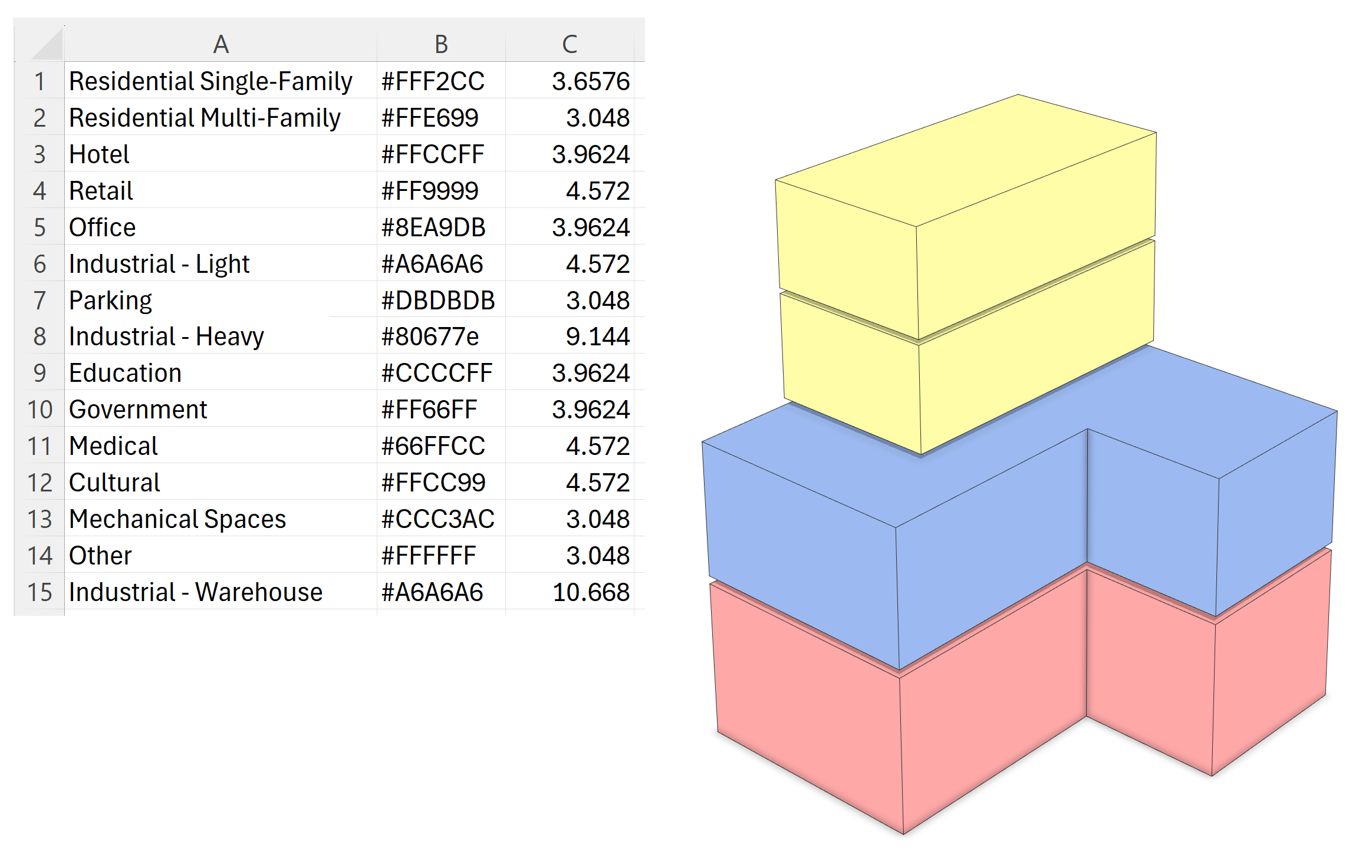
This tutorial shows you how to import data from a .csv file and use it in CGA code with arrays.
To demonstrate .csv file import, you will use a rule that splits a building into floors and allows you to assign space usages to each floor. The .csv file contains a list of available space usages and their colors and floor heights. In the CGA code, the data from the .csv file is read into an array and is used to drive the rule and the corresponding UI in the Inspector window.
Set up the data
To set up the data, complete the following steps:
- Expand the Tutorial_21_CSV_Import tutorial folder in the Navigator window.
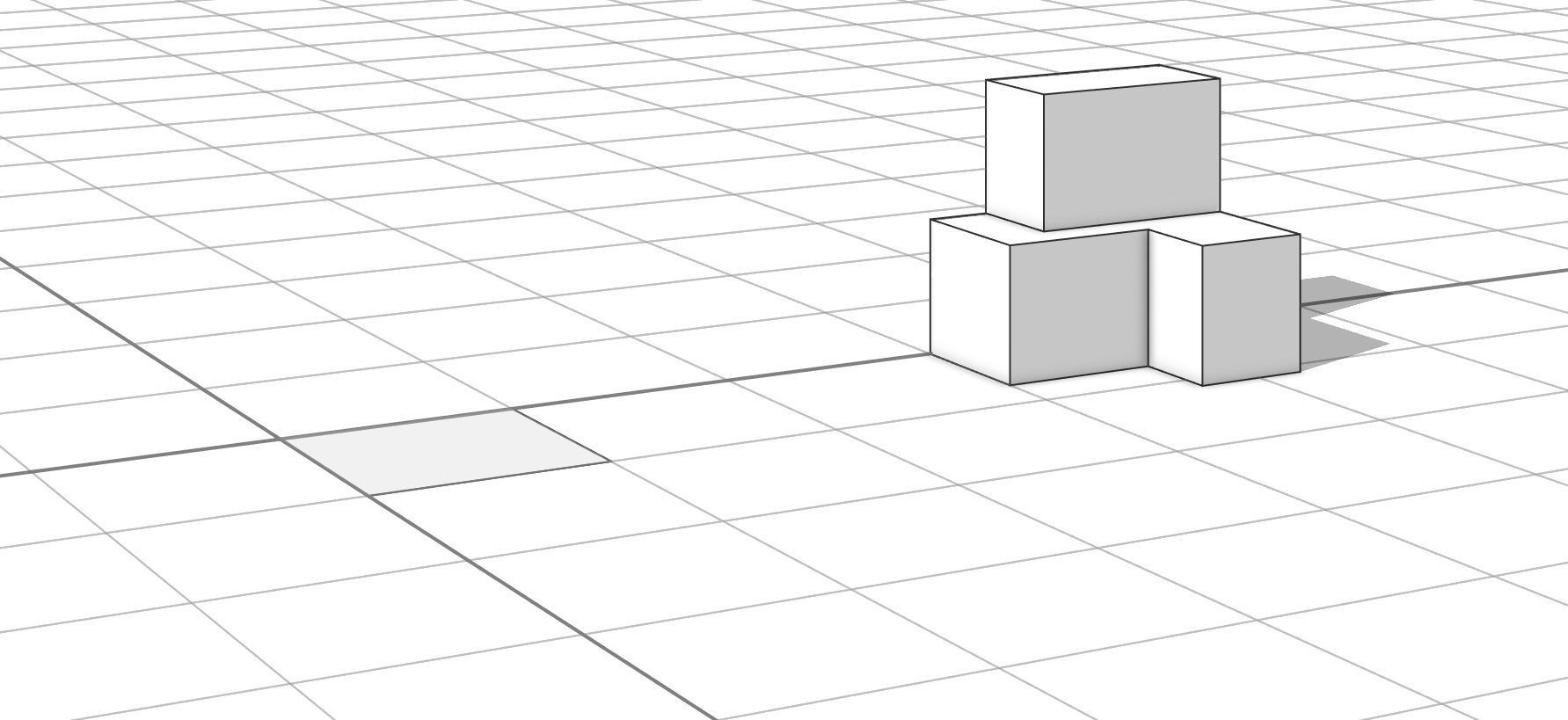
- Open the Assign_Floor_Usages_01.cej scene in the scenes folder and a 2D building footprint and 3D building mass appear in the Viewport window:
- Assign the Assign_Floor_Usages_01.cga rule file in the rules folder to the 2D building footprint using the Lot start rule.
- Assign the Assign_Floor_Usages_01.cga rule file to the 3D mass model using the MassModel start rule.
- Select both the 2D building footprint and the 3D building mass.
- In the Inspector window, click the Expand button
 to view the floor_usages array attribute, which is initially empty.
The Add button
 appears allowing you to add an element to the array.
 - Click the Add button five times to create five floors with the default usage, Residential Single-Family.
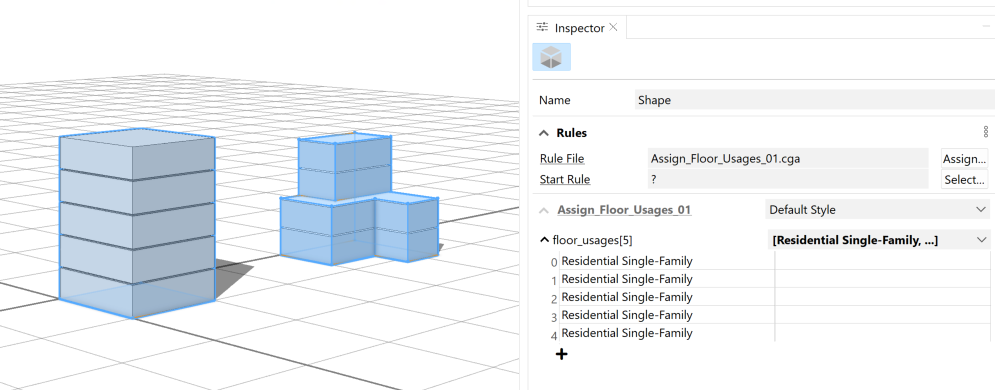
You will notice that the 3D building mass will not exceed the predefined height of the original model, whereas the model generated from the 2D footprint created five floors with the default usage, Residential Single-Family.
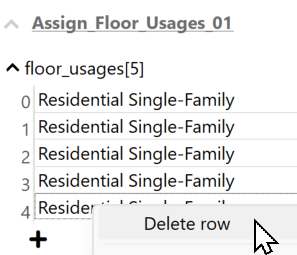
- Delete the extra floor by right-clicking the last array index element (row) in the Inspector window and click Delete row.
- In the Visibility settings
 in the Viewport window, uncheck Shapes to see each floor more clearly .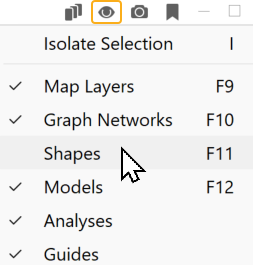
Your current scene now shows a rule with a default usage of Residential Single-Family with buildings that appear in a gray color and floor heights that are 2.85 meters by default.
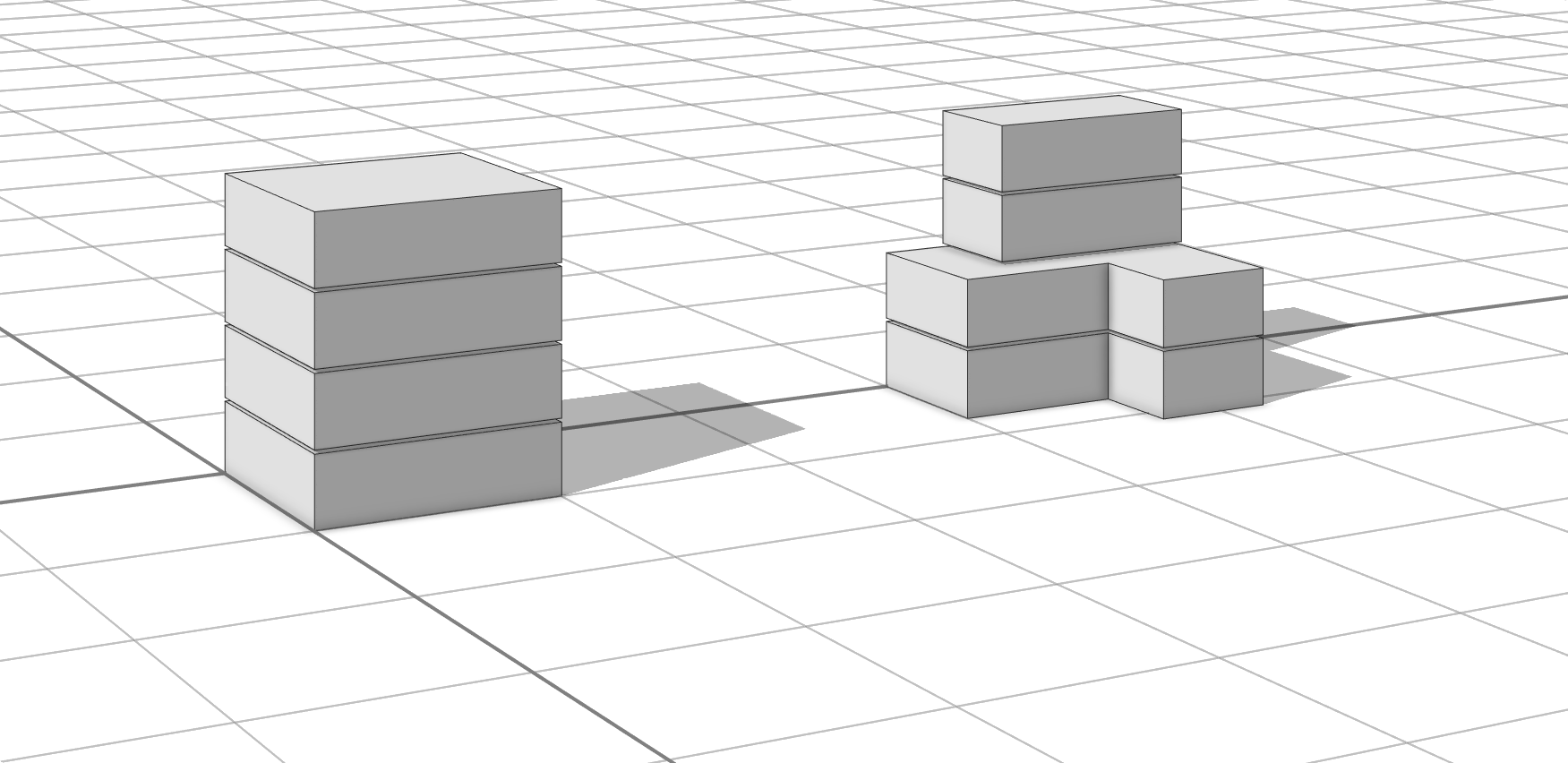
Open the Assign_Floor_Usages_02.cej scene to reference the same result.
Import data from a .csv file
To better define these attributes, use a CSV table to populate the array and complete the following steps:
- Open the usages.csv file in the assets folder to view the space usage data.
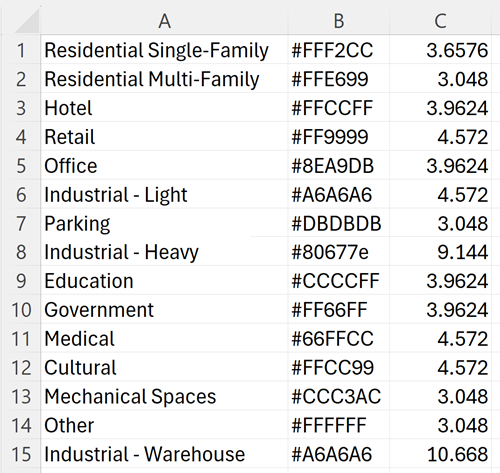
The first column lists space usages, and the next columns contain colors and floor heights for each usage. This file is formatted with comma and new line delimiters. Many other common delimiters—including commas, semicolons, tabs, and spaces—are also valid.
- Open the Assign_Floor_Usages_01.cga rule file in the CGA Editor window.
- To read data from the usages.csv file, add the following code after the definition of default_floor_height located in the Constants and Functions sections:
// read usages data from csv file
const usages_filename = "usages.csv"
const usages_data = readStringTable(usages_filename)
const numUsages = nRows(usages_data)
The readStringTable function reads the .csv file data, returns a string array, and stores it in usages_data. The array’s dimensions are 15 by 3, which corresponds to the number of rows and columns in the data file. The nRows function returns the number of rows in the array.
- Redefine the usages attribute and set it to the first column of the data array:
@Hidden
attr usages = usages_data[0:numUsages-1,0]
The brackets are used to access a subset of array elements. Inside the brackets, rows are listed first and columns after. 0:numUsages-1 returns all the rows from 0 to 14. The 0 after the comma refers to the first column. Array indices start from 0.
- Press Ctrl+S to save the CGA file.
- Click Generate
 or press Ctrl+G to generate the models in the Viewport window.
 - In the Inspector window, click each element in the floor_usages array and select the usage from the drop-down menu to change the usages per floor.
- Match the following configuration:
- 0 = Retail
- 1 = Office
- 2 = Residential Multi-Family
- 3 = Residential Multi-Family
The values in the list come from the usages array in the .csv file. This relationship is defined in the @Enum annotation above the attribute definition in the CGA rule file.
@Enum(valuesAttr=usages)
attr floor_usages = stringArray()
See the Assign_Floor_Usages_02.cga for reference.
- Define constants to store the data of the other two columns:
const colors = usages_data[0:numUsages-1,1]
const floor_heights = floatArray(usages_data[0:numUsages-1,2])
Add these lines below the usages definition under the @Hidden section. The floatArray function converts the string array into a float array.
- Write functions to get the color or floor height of a given usage:
getUsageColor(usage) = _getUsageColorFromIndex(findFirst(usages, usage)) _getUsageColorFromIndex(usageInd) = case usageInd==-1: default_color else: colors[usageInd] getFloorHeight(usage) = _getFloorHeightFromIndex(findFirst(usages, usage)) _getFloorHeightFromIndex(usageInd) = case usageInd==-1: default_floor_height else: floor_heights[usageInd] - Use the data to get the proper floor height for each usage. In the CreateFloor, FloorMass, and SplitMassModel rules, replace default_floor_height with the following code:
getFloorHeight(floor_usages[floorInd]) - Use the data to color each floor according to its usage. In the FloorMass rule, replace the two occurrences of default_color with the following code:
getUsageColor(floor_usages[floorInd]) - Press Ctrl+Shift+S to save all the files.
- Select the shapes.
- Generate the models.
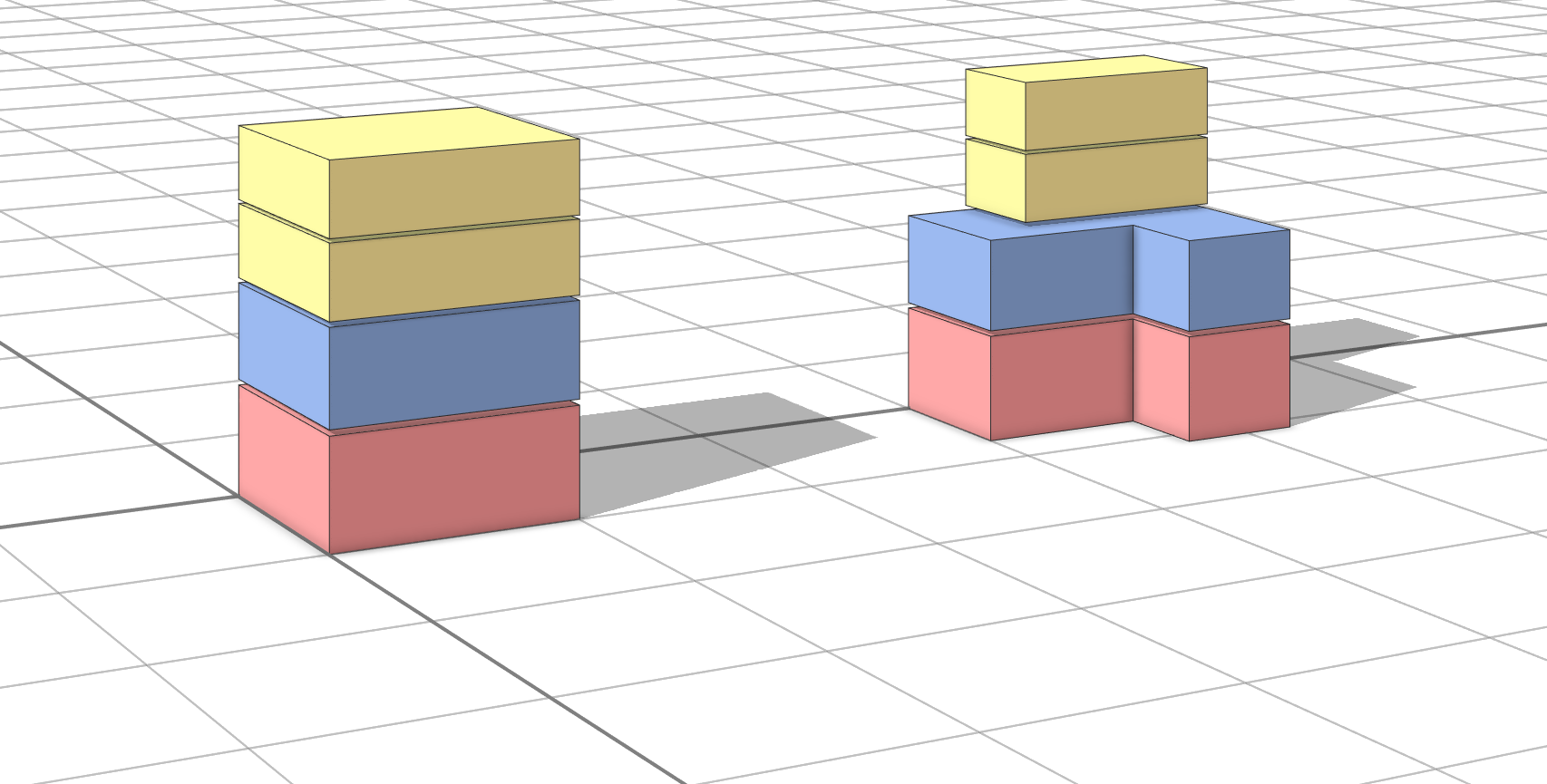
The rule now uses the data from the imported .csv file to determine the floor height and color of each floor according to the specified usage per floor.
Create a dashboard
To create a dashboard visualizing the gross floor area (GFA) per usage, complete the following steps:
- Ensure the Assign_Floor_Usages_01.cej scene is open.
- Open the Assign_Floor_Usages_01.cga rule again.
- Fix the reports so they report usages with their corresponding colors. In the FloorMass rule, replace usages[0] with the following code:
floor_usages[floorInd] - Click Window > Dashboard.
- Click Add a Chart
 .
. - Under Icon & Title, type GFA By Usage.
- Under Report, click GFA.
- Under Unit, type sqm.
- Leave the default values for the remaining inputs and click Add Card to finish.
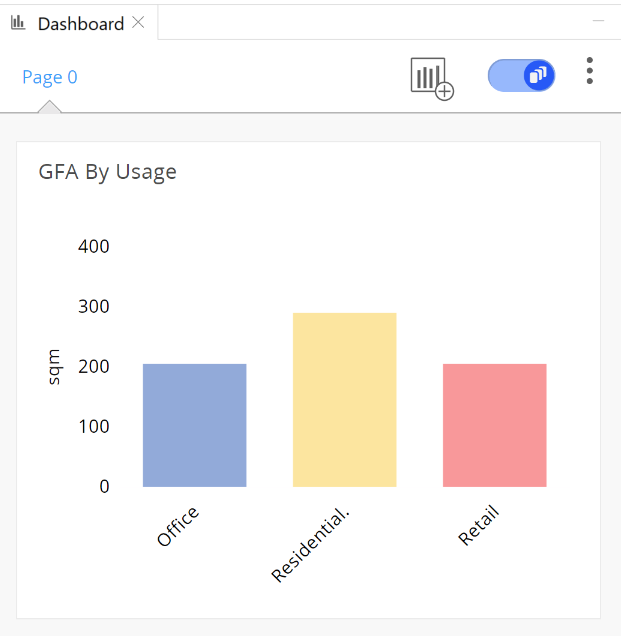
Open the Assign_Floor_Usages_03.cej scene and the Assign_Floor_Usages_03.cga rule file to see the final results.
In this tutorial, you've learned how to do the following:
- Add array data to an attribute.
- Import data from .csv file to use with a CGA file to define floor data in the models such as usage and color.
- Create a dashboard to show GFA per usage.
To continue your learning with CityEngine, see the complete CityEngine tutorial catalog.