You can switch between different window layouts to maximize the available screen space. Click Window > Layout in the main menu to see the available layouts.
Default
The Default layout has one large perspective view with editing options that allow for scene overview and management tasks such as import and export.

Compact
The Compact layout has one large perspective view and editing options, which makes it suitable for presentations.

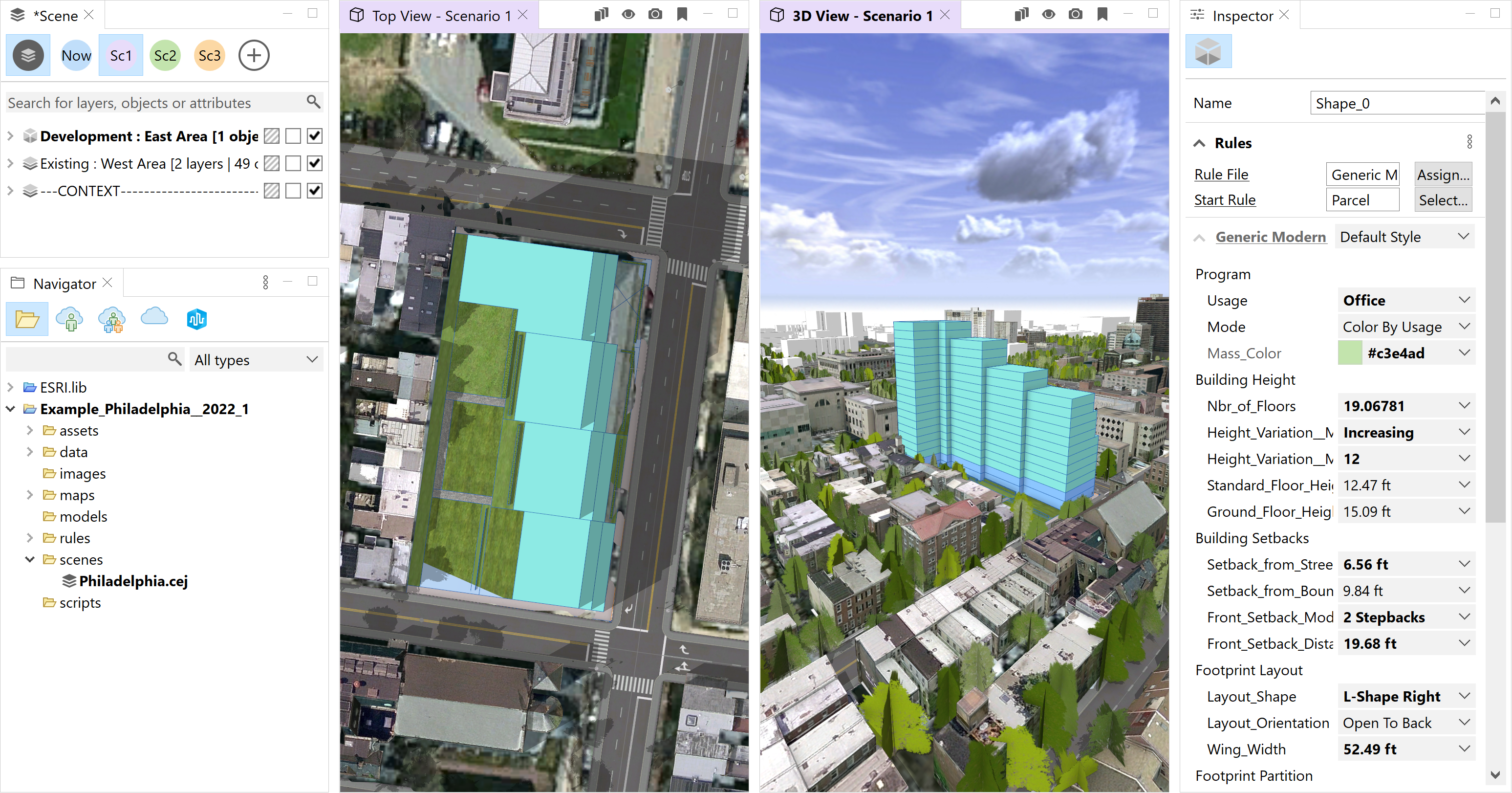
Top & 3D View
The Top & 3D View layout has a perspective view and a top view with space for editing options on both sides.
Top, Front, Side & 3D View
The Top, Front, Side & 3D View layout is the classic CAD layout with a perspective, top, front, and side view.

2 Scenarios Side-by-side
The 2 Scenarios Side-by-side layout has two perspective views with different scenarios assigned to it. This layout is suitable for comparing scenarios.

3 Scenarios Side-by-side
The 3 Scenarios Side-by-side layout provides three perspective views for different scenarios.

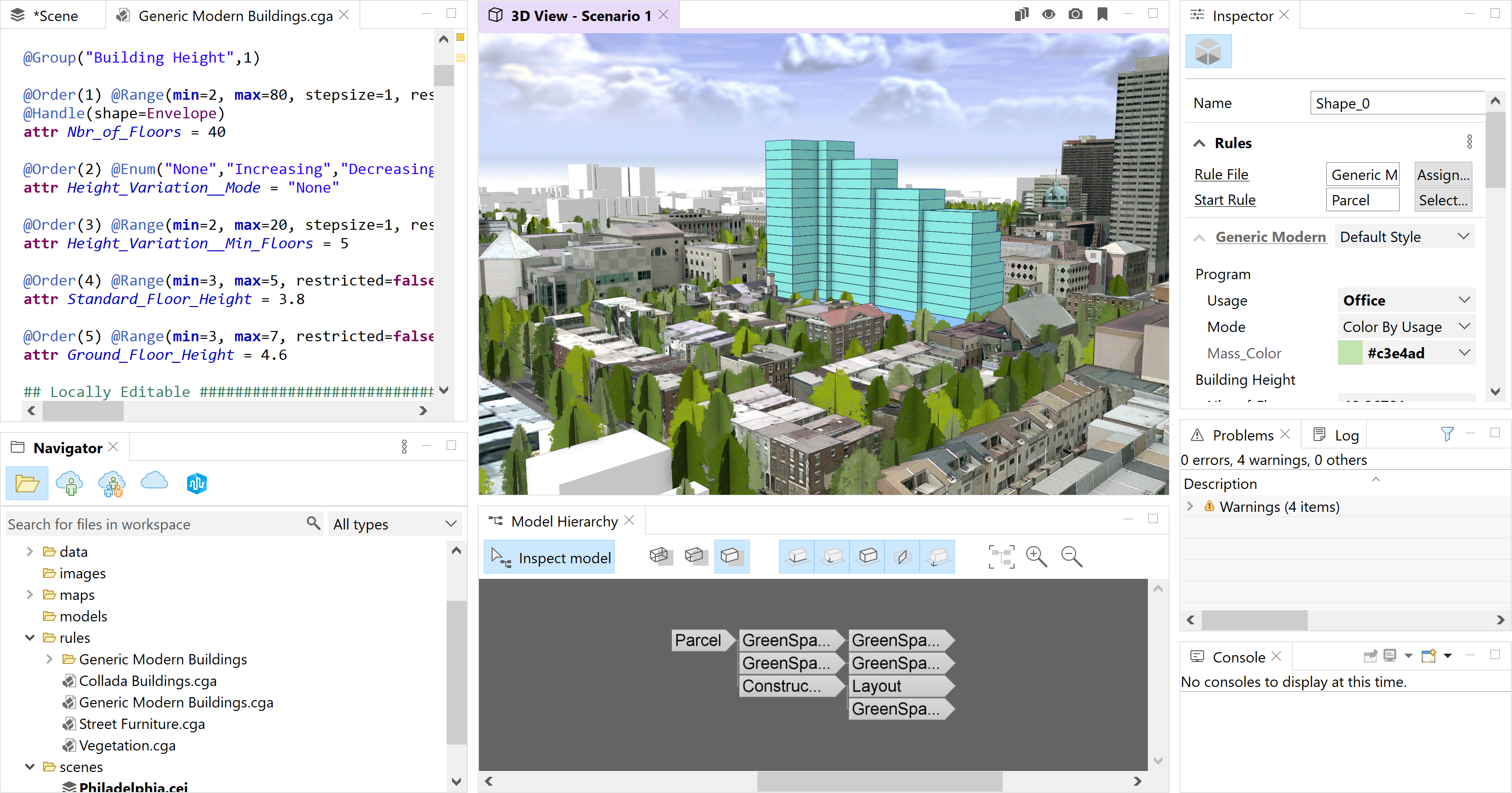
Rule Programming
The Rule Programming layout has one perspective view and leaves more area for the CGA Editor window. This layout is suited for editing rules and monitoring the outcome.
Multiple viewport windows
You can open as many viewports as necessary for a modeling task. You can create multiple viewports to examine your 3D data from different angles, or to view multiple scenarios side by side. To create a viewport, click Window > New Viewport from the main menu.
The following are the default viewports:
- 3D View
- Top View
- Front View
- Side View
Additional viewport types can be created and managed using the Window > New Camera and Manage Cameras options. Camera changes and rendering settings affect all viewports of the same type. To create two 3D viewports using different rendering modes, you need to create a new viewport type.