The Edit street/curves tool  provides handles to edit nodes by moving them, changing the curvature, and adjusting the height of the nodes.
To edit nodes, click the Edit street/curves tool (or press C), or click Graph > Edit Streets/Curves from the main menu.
Node editing
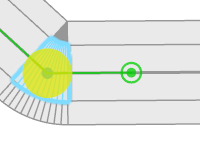
Each graph segment has two curve handles, one attached at the start node and one attached at the end node of the segment. The green handles in the image below drive the start and end direction of the street. The yellow circle allows you to move he node.

To edit either the horizontal or vertical components of a curve handle, change the viewing angle relative to the segment node. A steep angle allows you to edit the horizontal component, with a glancing viewing angle of the vertical component. The dashed blue line (which is only visible when you hover over one of the curve handles) indicates the local weight of the curve. To lock the direction, press Shift before dragging a curve handle.

The green circles of the curve handles indicate the smoothing type of the node (manual direction, straight, or smooth). Click a curve handle (green circle) while pressing the Ctrl key to switch between the types.
The images below show the indication of node type in a green circle as follows: (first image—smooth with manual directions, second image—straight, and third image—smooth with automatic directions


Note:
- The spline is mathematically defined by the two end points of the dashed blue lines, as well as the segment's start and end points.
- The segmentation of the street shapes defines the segmentation of the neighboring lot shapes. The overall number of segments per curve can help you avoid issues such as narrowly subdivided facades. The segmentation can be adjusted using the Precision parameter in the Segment Parameters or Node Parameters sections in the Inspector window.
Principle street handles
When an intersection has the Freeway or Junction type and has three or more connecting streets, the curve handles are accompanied by principle street handles. These allows you to edit the principle street at an intersection, changing the intersection geometry.


Specify the principle streets by dragging a principle street handle from one street to another.
Note:
Dragging a principle street handle into the yellow circle at the intersection results in the default behavior.
Straight versus smooth
Streets can be created either straight (default) or smoothly curved. To switch between the two states, click Graph > Set Curves Straight, and click Graph > Set Curves Smooth in the Graph main menu.


To choose between those types, click Graph > Curves Auto Smooth, and choose an option:
- Threshold angle—Specify the minimum angle for curve smoothing.
- Horizontal optimize—Set streets in front of slopes to straight to prevent oscillations.