You can apply rules and use assets as they are or import the rules into your own rules. For example, applying the Plant_Loader.cga rule to a shape in your scene inserts a plant model on that shape. In the Inspector, you can adjust attributes for that shape, such as plant species and height. Alternatively, you can import the Plant_Loader.cga rule into one of your CGA files, and use CGA to control the insertion of plant models and set the species, height, and other attributes.
Buildings
You can create different types of 3D building models when you use the building rules. Apply the Building_From_Footprint.cga rule to 2D building footprints to generate plausible 3D building models. The Building_From_OpenStreetMap.cga rule is automatically applied to 2D polygons downloaded using Get Map Data. This rule is the same as the Building_From_Footprint.cga rule but also uses OpenStreetMap data (height, building:levels, roof:height, roof:shape, building:colour, roof:colour), when available, to determine the building height, roof form, number of levels, building color, and roof color. Apply the Building_Mass_Texturizer.cga rule when you have a 3D mass model as your initial shape.

Plants
Insert vegetation models into your scene or model. The ESRI.lib Vegetation library is a Webstyle shared across the platform. The library contains a variety of species including broadleaf trees, conifers, and palms available in realistic, schematic, or fan representations. Use the Plant_Loader.cga rule to insert a single plant model, or use the Plant_Distributor.cga rule to scatter multiple plants over an area.

Streets
Apply rules to dynamic street shapes to generate textured streets. The Street_Modern_Simple.cga rule textures streets with lane markings, while the Street_Modern_Standard.cga rule also adds stop markings and crosswalks.

Text
The Text.cga rule inserts text you can use for labeling 3D models. Text is inserted in the xz plane of the scope.

Fences
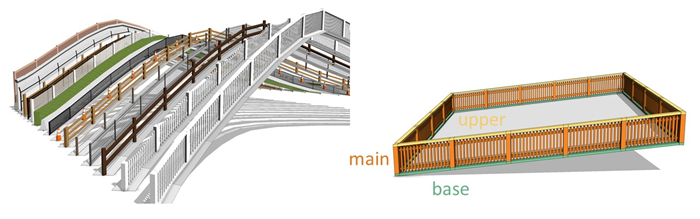
Fence rules generate fences along street shapes or along polygon edges. You can apply the Fence_On_Graph.cga rule to street shapes to create fences that follow the street shapes as they curve or go over hills. Apply Fence_On_Polygon.cga to polygonal shapes to create fences along the edges of the input polygon. You can control which polygon edges have fences through attributes and local edits. Preset styles are available to create a variety of fences from picket fences to highway barriers.
Urban
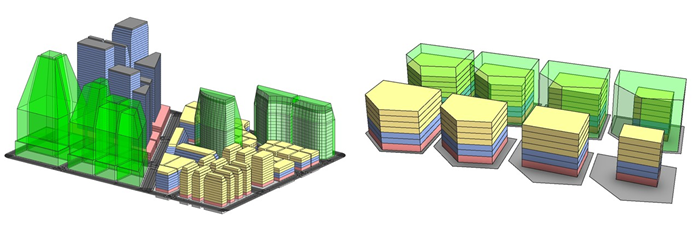
Use the urban rule to visualize zoning regulations and automatically generate buildings following the regulations. You can input zoning regulations such as setbacks and sky exposure planes, lot coverage, and FAR limitations, as well as building dimension constraints. Additionally, you can add building configurations to the rule, specifying footprint shapes, number and heights of floors, and a mass distribution policy. Using these constraints, the urban rule fits a building mass model onto the parcel. You can also use this rule to visualize 3D zoning envelopes given by setbacks and sky exposure planes.