On application startup, ArcGIS AllSource checks by default for announcements related to your installed ArcGIS AllSource products. Announcements include information about upcoming software changes, deprecation notices, and critical software defects. They appear as toast notifications and as items in the Notifications pane. Your computer must be connected to the internet to check for and receive announcements.
View announcements as toast notifications
When ArcGIS AllSource starts and an announcement is available, a toast notification displays a summary of the announcement with a Learn more link. Clicking the link opens a message box with the full announcement.
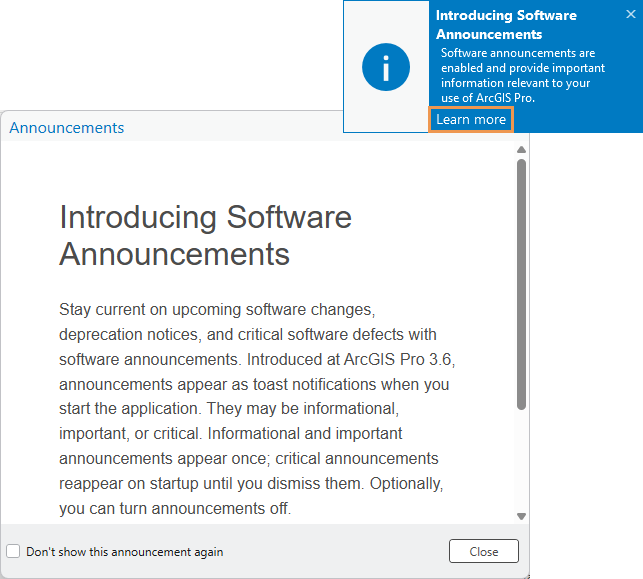
Announcements are of three types:
- Informational

- Important

- Critical

Informational and important announcements show a toast notification once per machine. Critical announcements show a toast notification on every application startup until you dismiss them. You can dismiss an announcement on the Announcements message box by checking the Don't show this announcement again check box. Alternatively, you can dismiss it in the Notifications pane. It is not possible to see an announcement after it is dismissed.
View announcements in the Notifications pane
If toast notifications of announcements are turned off, or if you miss an announcement, you can see a list of all announcements that have not been dismissed in the Notifications pane.
To open the Notifications pane and view announcements, complete the following steps:
- In an open project, click Notifications
 at the top of the application window. Alternatively, press Alt+W.
The Notifications pane appears. Software announcements and any other notifications are listed.
- Optionally, click the Learn more link on an announcement notification to open a message box with the full announcement.
Note:
Notifications remain in the pane until you dismiss them. Click Close
 on a notification to dismiss it.
View software update announcements
Some announcements may apply to software updates available for download. When this is the case, an Announcements message box appears after you click the Download Now button to start a software update. You can view a summary of the announcement in the message box or view the full announcement in an HTML window. Click Proceed on the message box to continue with the software update process.
Control announcement notifications
You can configure ArcGIS AllSource to turn off toast notifications of announcements or to prevent the application from checking for announcements.
- Open the ArcGIS AllSource settings page in one of the following ways:
- From an open project, click the Project tab on the ribbon.
- From the start page, click the Settings tab
 .
.
- In the list of side tabs, click Options.
- On the Options dialog box, under the Application heading, click User Interface.
- To prevent the application from checking for announcements on startup,
under Notifications, uncheck the Check for announcements on startup check box.
When the box is unchecked, ArcGIS AllSource does not make network calls to check for announcements. Toast notifications of announcements stop and announcements are not added to the Notifications pane. The default setting is checked.
- If you want to check for announcements but do
not want to see toast notifications, uncheck the
Show announcement toast notifications check box.
The application continues to check for announcements at startup and makes them available in the Notifications pane and during the software update process. The default setting is checked.
Note:
If you choose not to check for announcements on startup, you may still receive announcements during the software update process. To turn off all announcements, you must add a registry key as described in the next section.
Administrator control of announcement checks
Application settings for toast notifications and startup announcement checks are available for administrator control.
As an administrator, you can also add a value to the Windows registry to block all announcements, including software update announcements. Browse to the registry key HKEY_LOCAL_MACHINE\SOFTWARE\ESRI\ArcGISAllSource\Settings, create a DWORD value named DisableAnnouncements, and set the value to 1.